2FA Generator#
Many sites protect sign-in with a second step: a six-digit code that changes every 30 seconds. 9Login can generate those codes for you, so you do not need an authenticator app on your phone while you work in a profile. The generator works offline and sends nothing to any server.
Open the generator#
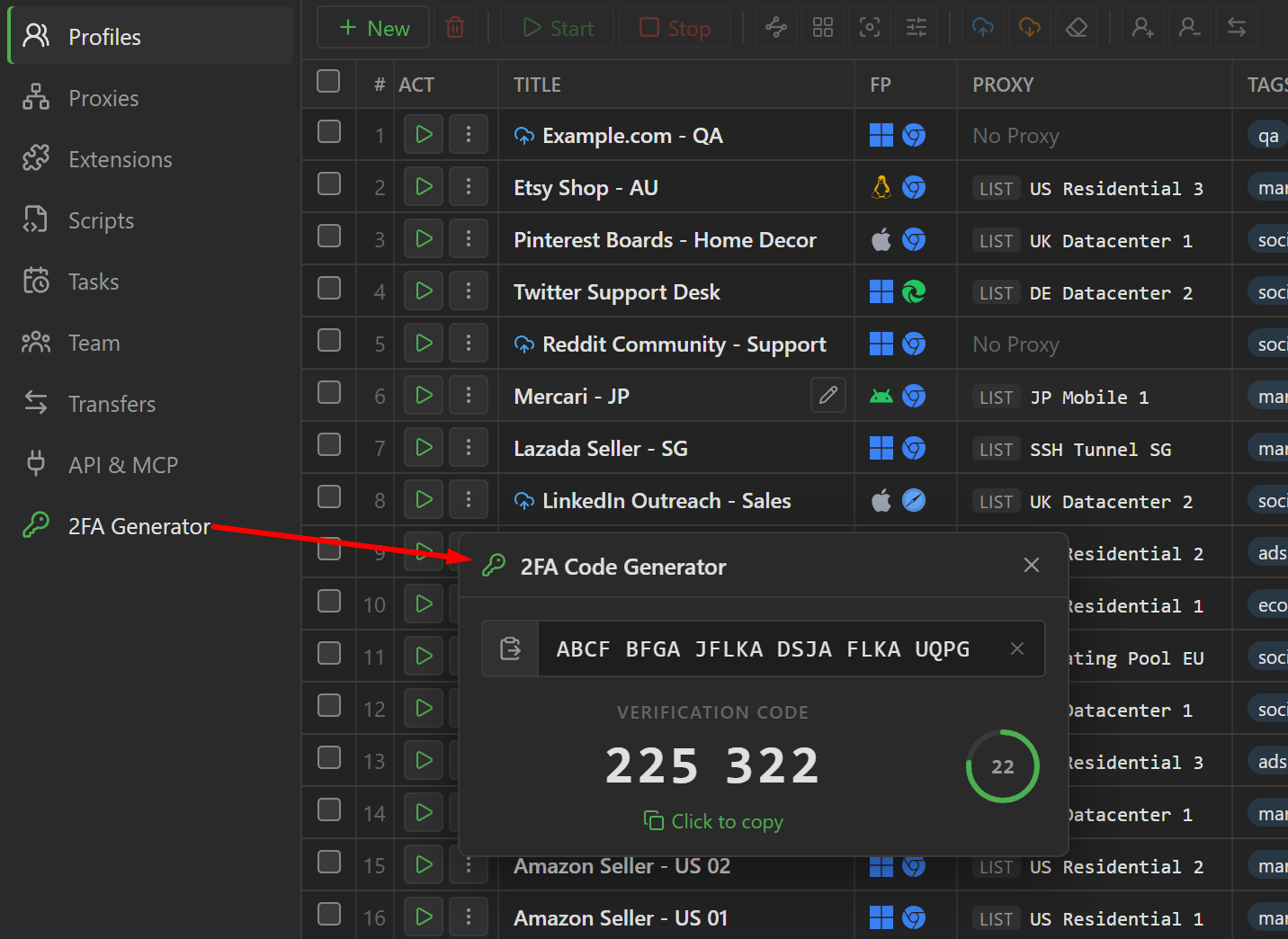
Click 2FA Generator in the sidebar, under API & MCP. A small window appears in the middle of the
app. It floats above everything else, so you can keep it open while you edit a profile or type into a
browser. Drag it by its title bar to move it; 9Login remembers where you left it. Close it with the
X button or Esc.
The generator is available on every plan, including Free.
Enter the key#
When you turn on two-factor authentication on a website, it shows a QR code and, next to it, a link
such as Can't scan? or Enter the key manually. That reveals the secret key, a string of letters
and digits like U3HE H6Y3 O6J6 3BIF. Paste that key into the box: click the paste button at the left
of the box, or press Ctrl+V. Spaces, dashes and lower-case letters are fine.
You can also paste the whole otpauth:// link that some sites offer instead of the key. Use the link
when a site uses codes with 8 digits or a period other than 30 seconds: the link carries those
settings, a bare key does not.
Keep the key somewhere safe, such as a password manager. 9Login does not store it: the key stays in the box until you close the app, and it is never written to disk or sent to your account.
Read and copy the code#
As soon as the key is valid, the code appears, and the ring on the right counts down the seconds until the next code. Click the code to copy it, then paste it into the sign-in form. When the ring turns orange, only a few seconds are left; wait for the next code instead of typing one that is about to expire.
If something goes wrong#
| What you see | What to do |
|---|---|
This key is not valid |
Check the key for typing errors and copy it again from the site. A valid key never contains 0, 1, 8 or 9; O, I and B are letters. |
| The site rejects every code | The clock of your computer is off. In Windows, open Settings > Time & language > Date & time, click Sync now, then try again. |
| The code has the wrong number of digits | Paste the site's otpauth:// link instead of the bare key. |
| Nothing is pasted when you click the paste button | Click in the box and press Ctrl+V. |