Bulk update profiles#
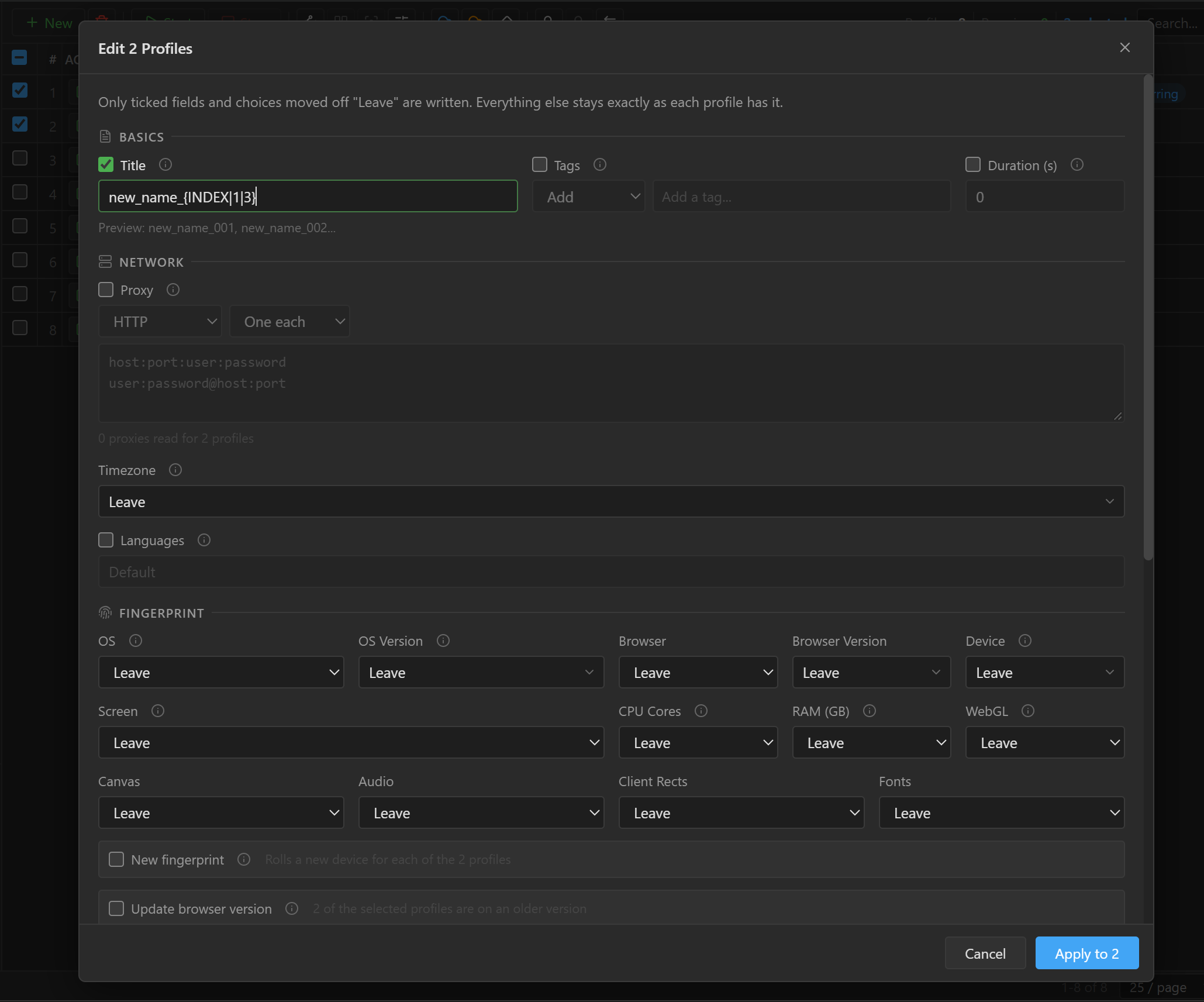
Bulk edit changes some settings for many profiles at once: rename them, add or remove tags, hand out proxies, change fingerprints or upgrade the browser version. Any field you leave alone keeps each profile's own value. For what each field means, see Profile settings.
Open Bulk edit#
- Select 2 or more profiles in the table.
-
Click the Bulk edit button on the toolbar (the slider icon; hover over it to see
Edit the selected profiles together (N)). TheEdit N Profilesbox opens. -
If you select exactly 1 profile, this button opens the regular profile edit form.
- Only fully stopped profiles can be edited. Running profiles are left out, and the top of the box says how many profiles were skipped.
Only the fields you choose are written#
Only checked fields and choices other than Leave are written.
- Free-text fields (
Title,Tags,Proxy,Languages,Start URL,Duration (s),Inject Script, the two header fields) have a checkbox on their label. Checked but empty is also a value: checkInject Scriptand leave it empty to remove the script from the profiles. - Choice fields have
Leaveat the top of the list; keepingLeavemeans no change.
Name, tags, duration#
| Field | How to use |
|---|---|
Title |
Renames profiles with a name template, for example profile{INDEX|1|3} for profile001, profile002... The Preview line shows the first two names. Numbering follows the order currently shown in the table. A name without {INDEX} or {RAND} gets a number appended automatically (numbered automatically). |
Tags |
Add adds the tags you entered, Remove removes those tags, Replace all replaces all of the profile's tags. |
Duration (s) |
Same as Duration (seconds) in the form. |
Proxy, time zone, language#
Check Proxy, then choose a source:
No Proxy: removes the proxy, so the profiles connect directly through the computer's network.HTTP,SOCKS4,SOCKS5,SSH: paste a list of proxies, one per line, in any format that the form accepts. Lines that cannot be read are skipped.From my list: check proxies in the proxy list.Custom scriptproxies are also picked here.
Then choose how to hand them out:
One each: one proxy per profile, in the order currently shown in the table. If there are fewer proxies than profiles, the list starts over from the top.Same for all: the first proxy goes to all profiles.
The line below the field tells you how many proxies were read for how many profiles.
Timezone (Default, Auto (by IP) or a time zone) and Languages sit right below. Writing a fixed
value turns off Auto (by IP) for that field.
Fingerprint#
OS, OS Version, Browser, Browser Version, Device, Screen, CPU Cores, RAM (GB) are the
device fields. Choose anything other than Leave in any of them and New fingerprint is checked and
locked automatically: every profile gets a new device.
Randomis available inOS Version,Browser Version,Device,Screen,CPU Cores,RAM (GB), and is picked separately for each profile.OSandBrowserhave noRandom.- A profile that moves to a different OS drops the fixed OS version, browser version and device model it had, because they belong to the old OS. A profile whose OS cannot run the chosen browser keeps its old browser.
Devicelets you pick a model only whenOSis Android or iOS (paid plan).WebGL,Canvas,Audio,Client Rects,Fontstake effect from the next open and do not change the device.
New fingerprint: each profile gets a new device, generated from its own fingerprint settings
(fixed fields stay fixed). Each profile uses one new fingerprint; if you do not
have enough left, the app tells you and writes nothing, and the checked fields stay so you can uncheck
some.
Update browser version: moves each profile to the newest version, among those 9Login supports, of
the browser it uses, keeping the device and without using a new fingerprint
(details). The hint line tells you how many profiles are on an old version.
Firefox, Safari and iOS profiles stay unchanged. This field is locked while New fingerprint is on,
because the new device already comes with its own version.
Two warnings may appear when you click Apply to N:
Change the device on N profile(s) that have been used?: some profiles already have cookies and logins. If you change the device, websites see the account coming from a different computer, and the old device cannot be restored. ClickChange devicesto continue.N profiles cannot get that fingerprint: the selected combination cannot be generated for those profiles. They keep their old fingerprint and fingerprint settings; other changes are still written. ClickApply anywayto continue.
Other fields#
The remaining fields work as in the profile form, see the Browser and Advanced groups:
- The eight
Browser Behaviourswitches:Leave,OnorOff. Visibility,Color Scheme,Downloads,Notifications,On Startup,On Exit.Start URL: check it and leave it empty to remove the start page.Script: pick a script, orNoneto remove it. Without a paid plan you can only remove scripts.Request Blocking: choose a mode and enter rules.Offturns blocking off but keeps each profile's old rules.Inject Script: check it and leave it empty to remove it.Remove Headers,Override Headers:Addadds to each profile's existing list,Replace allreplaces the whole list.
Apply#
Click Apply to N. The app reports how many profiles were updated. Profiles that were started while
the box was open stay unchanged, and the message says how many there were.