Sync control#
When you run many profiles at once, Sync control repeats what you do in one main profile in the other
profiles, and Arrange Windows lays out the running windows in a grid. The buttons for these two
features sit right after the Stop button on the toolbar; hover over each button to see what it does.
Operating system
Sync control runs on Windows and Linux, but works best on Windows. Arrange Windows and Show window are available on Windows only.
Run a Sync control session#
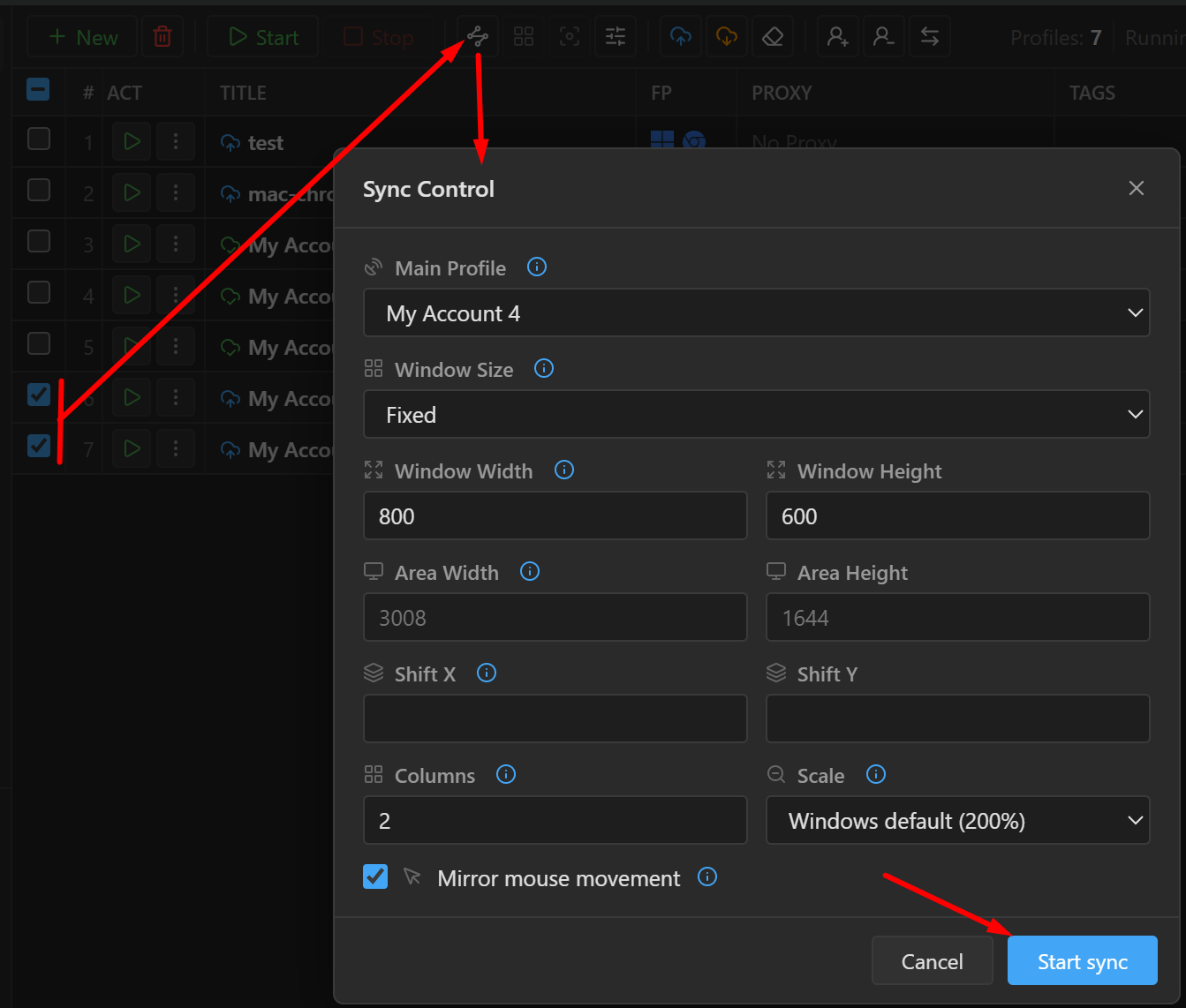
- In the profile table, select at least 2 profiles. Every selected profile must be stopped; stop any profile that is running first.
- Click the Sync control button on the toolbar. The
Sync Controlbox opens. - In
Main Profile, choose the profile you will control by hand. - Adjust the window grid if needed, turn
Mirror mouse movementon or off, then clickStart sync.
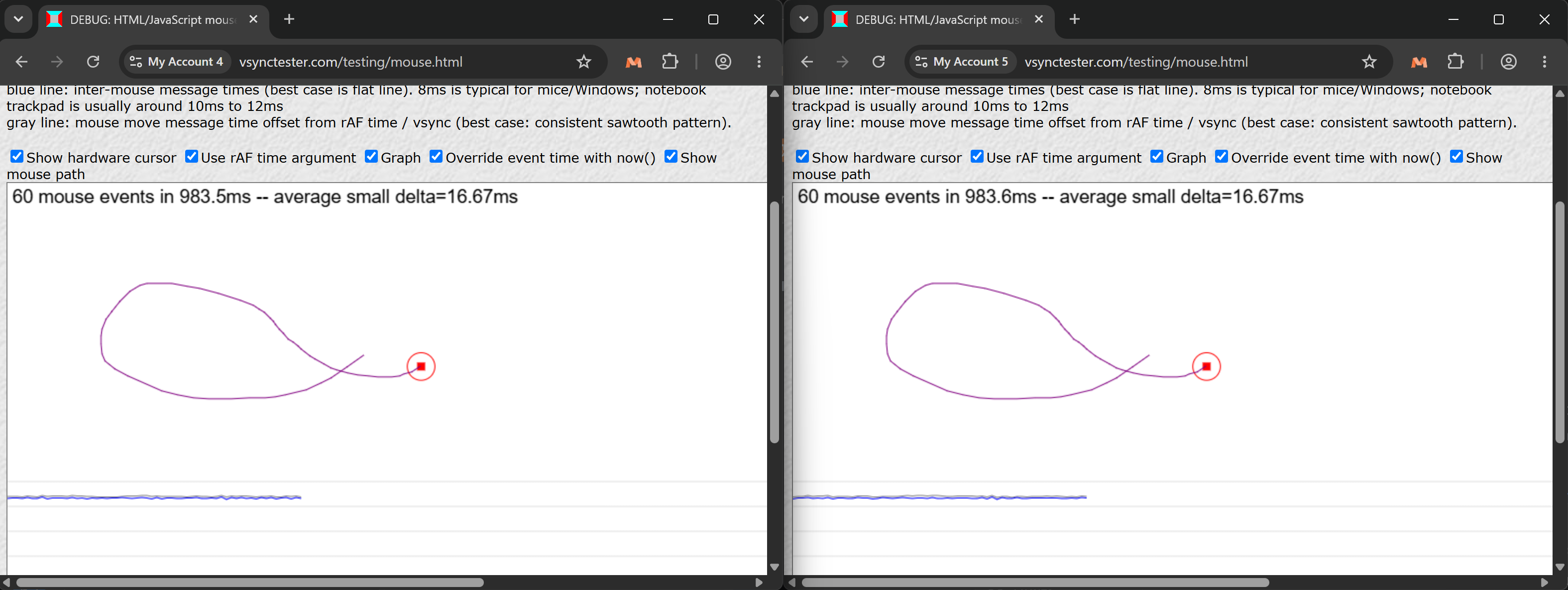
All selected profiles open and are laid out in a grid, in the order of their rows in the table. From then on, every click, keystroke and scroll you make in the main profile's window is repeated in the other profiles.
Mirror mouse movement (on by default) also repeats mouse movement. Turn it off and only clicks,
scrolling and keystrokes are repeated: this is lighter on your computer and enough for most work.
While the session is running:
- The Sync control button is lit. The Show window button brings the main profile's window to the front.
- Profiles in the session do not run the script attached to the profile, and do not reopen when
closed (
On Exit). TheSync Controlbox warns you beforehand if any profile is set up like that. - Profiles in the session do not accept automation commands through API and MCP, because you are controlling this session by hand.
To end the session, stop the main profile. The other profiles keep running but stop repeating your actions; stop them as usual.
Window grid#
Sync control and Arrange Windows share one grid. The grid settings apply only to windows that these two features open or arrange; a profile opened the normal way still opens at its own size.
| Field | Meaning |
|---|---|
Window Size |
Fixed: you enter the Window Width and Window Height of each window (default 800 x 600), and each row holds as many windows as fit. Grid: you choose the number of Columns and Rows, the screen area is divided into exactly that many cells, and the app shows the size of each cell in advance. |
Columns |
In Fixed mode: the number of windows side by side. Leave it empty (Auto) to fit the screen area. |
Area Width, Area Height |
The part of the screen the grid uses, in physical pixels. Leave empty for the whole screen. |
Shift X, Shift Y |
When the grid is full, further windows stack on top of the first ones, offset by this amount so you can still reach the windows underneath. 0 stacks them exactly. |
Scale |
The zoom level of the browsers in the grid. It defaults to your Windows display setting; pick a smaller value to fit more windows on one screen. Websites still see the profile's screen size. |
Arrange Windows#
Arrange Windows is available on Windows only. This button (right after the Sync control button) arranges all running browsers on the grid above, in the order of their rows in the table.
To adjust the grid before arranging, hold Ctrl and click the button. The Arrange Windows box opens
with the grid fields; when you are done, click Arrange. The settings are saved and shared with Sync
control.
If the app reports that a window was not arranged (had no window yet), that browser has just started
and has not shown its window yet. Wait a moment and click again.
Show window and Always on top#
- Show window (Windows only): the third button in the group brings the selected profile's window
to the front, and the window shakes briefly so you can spot it. During a Sync control session, this
button brings up the main profile's window. The
Show windowitem in each row's three-dot menu does the same for the profile on that row. Always on topat the bottom of the sidebar keeps the 9Login window above the browsers it opens. Click it again to turn it off.