Working with profiles#
Each profile runs as a separate browser, with a fingerprint, proxy, cookies and login data kept apart from the other profiles. This page introduces the main 9Login screen: the profile table, the search box and the toolbar.
What is a profile#
A profile is a browser identity: a device fingerprint, a proxy, extensions, a script and other settings. Profiles are stored on your account, so on any computer where you sign in to 9Login you see the full list and can open them there. Browser data (cookies, logins to websites) is the exception: it stays on the computer that opened the profile. To take it to another computer, use cloud data.
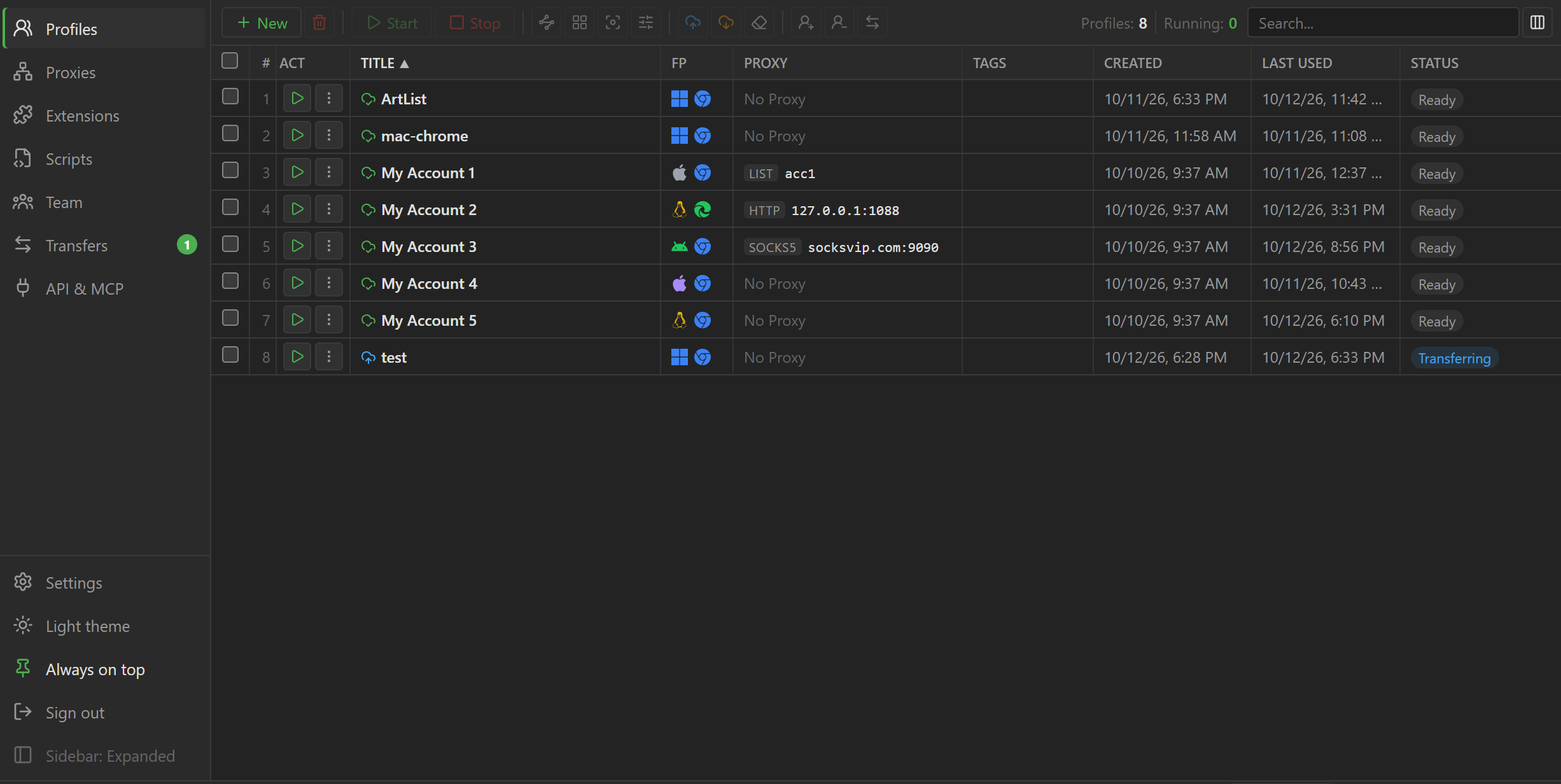
Profile table#
Each row is a profile, with these columns:
| Column | Content |
|---|---|
TITLE |
Profile name. The cloud icon before the name compares the data on this computer with the copy in the cloud; the person icon after the name means the profile is assigned to a sub-user |
FP |
Operating system and browser of the fingerprint; hover to see details |
PROXY |
Proxy type and address; LIST means a proxy taken from the shared proxy list |
TAGS |
Tags for grouping profiles |
CREATED, LAST USED |
When the profile was created, and when it was last opened on this computer |
STATUS |
Run status, see Running profiles |
The ID column is hidden by default; use the Columns button in the right corner to hide or show
columns. Double-click a row to open the edit form for that profile.
The Search... box filters by name, tag, proxy (address, user or name in the proxy list), the
fingerprint's operating system and browser, the name of the sub-user holding the profile, and ID.
Toolbar#
The toolbar buttons act on the selected profiles: click a row to select it, and hold Ctrl or Shift to select more. The checkbox at the top of the table selects every profile that matches the search box, across all pages. Hover over a button to see what it does, or why it is greyed out.
| Button | What it does |
|---|---|
New |
Create a new profile, see Profile settings |
| Trash can | Delete the selected profiles from the account, along with their browser data on this computer. This cannot be undone |
Start, Stop |
Open or close the selected profiles, see Running profiles |
| Sync control, Arrange | Control many windows at once and arrange windows in a grid, see Sync control |
| Show window | Bring the window of a running profile to the front (Windows only) |
| Bulk edit (sliders) | Edit many profiles at once, see Bulk edit |
| Cloud with up arrow, cloud with down arrow | Push browser data to the cloud or download it to this computer (paid plans), see cloud data |
| Eraser | Clear browser data or only the cache, see Clear data |
| Assign, take back (person icons) | Assign profiles to a sub-user or take them back, see Teamwork. Shown only to an account owner who has sub-users |
| Two opposite arrows | Transfer profiles to another 9Hits account (paid plans, account owner only), see Transfer profiles |
| Refresh (circular arrows) | Reload the profiles, proxies, extensions, scripts and tasks from your account, to see at once what a sub-user or another computer just changed. Changes also arrive on their own within a few minutes |
Columns |
Hide or show table columns |
Each row also has its own Start or Stop button in the ACT column, and a More button (three dots)
that opens a menu for that profile only: Edit, Duplicate, Show window, Cookies, Upload data,
Download data, Clear, Delete, plus Assign to... and Take back when you have sub-users.
Duplicate creates a new profile with the same settings but a new fingerprint, and does not copy
cookies or data. Cookies opens the cookie manager, see Cookies and data.
Profiles per plan#
Your 9Login plan sets the maximum number of profiles on the account. The number in use out of the
maximum shows in the bottom bar, right next to your username. When you reach the maximum, the New
button is greyed out; delete some profiles or upgrade your plan to create more.
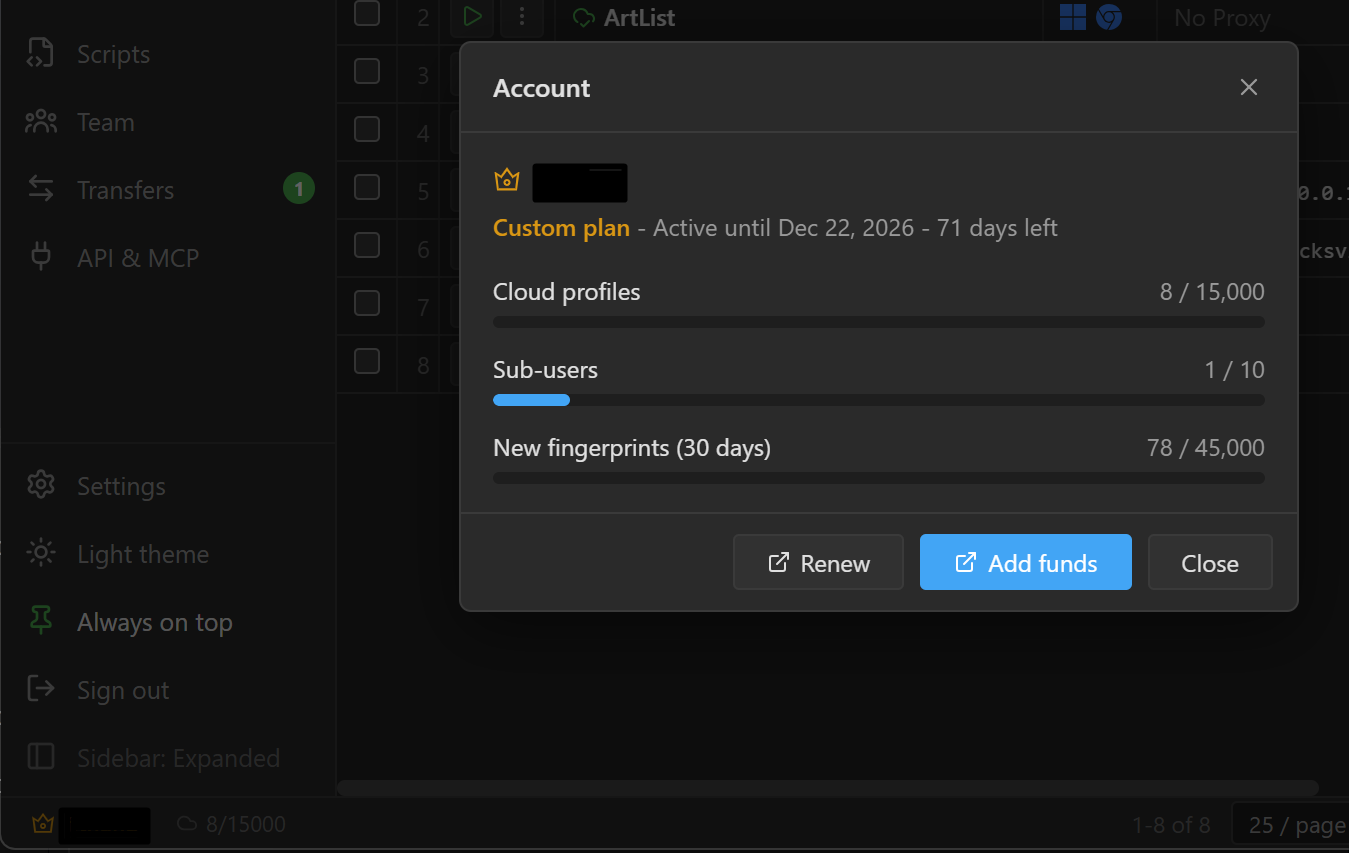
Click your username in the bottom-left corner to open the Account box: plan name, expiry date,
Cloud profiles used out of the maximum, Sub-users and New fingerprints (30 days). The Renew
(or Buy a plan) and Add funds buttons open the matching page on the dashboard. Sub-users share the
account owner's limits.
When the plan expires or you move to a smaller plan, profiles are not deleted, but only the oldest
profiles within the plan's limit can open. The rest show Over plan limit in the STATUS column.