Campaign settings#
This page is a reference for every field of the campaign form at https://dash.9hits.com/campaigns, in the order of the tabs on screen.
- A PREMIUM or VIP label means you need that subscription plan to use the field.
- Saved changes take effect immediately.
General tab#
| Field | Description |
|---|---|
Title |
A name to help you recognize the campaign. Only you can see it. Up to 200 characters. |
URL(s) |
The full URL (with http:// or https://) of the page that needs traffic. The VIP plan can enter up to 300 URLs, one per line, and each visit picks a random URL. Other plans can enter only one URL. You can insert placeholders to track each visit. |
Duration |
The duration range of each visit (seconds); each visit picks a random value within the range. Drag the slider or type numbers in the two boxes at either end. From 30 seconds up to 60 (REGULAR), 300 (PREMIUM) or 600 (VIP). |
Max popups PREMIUM |
The number of popups that may open during a visit, from ads on the page or from a macro. Up to 1 with PREMIUM, 3 with VIP. |
Adult content |
Whether the page has adult content. With Yes, only sessions that accept this kind of content get the campaign. |
Coin mining |
Whether the page runs a cryptocurrency mining script. Yes also narrows the pool of sessions, as above. |
State |
Running (default) or Paused. |
Set Adult content and Coin mining correctly
Setting No for a page that actually has adult content or crypto mining can lead to visits not
being counted for points, or to your account being locked.
URL placeholders#
Insert the placeholders below into the URL, usually in query parameters. On each visit, they are replaced with details of the session viewing the page, so your analytics tool can segment and reconcile the traffic.
| Placeholder | Replaced with |
|---|---|
{COUNTRY} |
The session's country code, for example US |
{IP} |
The IP the session uses to reach the internet (the proxy's IP if the session goes through a proxy) |
{RIP} |
The real IP of the machine running the session |
{CONN} |
Connection type: system, http, socks4, socks5, ssh |
{PR} |
true if the session goes through a proxy, otherwise false |
{PLATFORM} |
The platform of the machine running Viewer, for example win-x64, linux-x64 |
{APPVER} |
The Viewer version |
{UID} |
The 9Hits user ID of the person running Viewer |
Example:
- Use upper case exactly as shown and keep the curly braces. Each placeholder is replaced only at its first occurrence in the URL.
{UID}pairs withUser filteron the Traffic Quality tab: if you see a Viewer user sending traffic you don't want, add that user ID toUser list.
Sources & GEO tab#
This tab has two parts: referrers at the top, GEO Targeting below.
Referrer#
A referrer is the page the visit appears to come from, so the analytics tool on your page records it as the source. Requires PREMIUM or higher; up to 50 referrers with PREMIUM, 100 with VIP.
Basic mode: one URL per line; each visit picks a random line.Advanced mode: each row is a URL with a percentage; add rows withAdd referrer. The percentages must add up to exactly 100%.
Referrers are not a filter, so they don't reduce your traffic.
GEO Targeting#
Filter sessions by country or continent.
| Field | Description |
|---|---|
Visitor countries |
Accept all countries (no filter), Only selected (accept only the selected list) or All except selected (accept everything except the list). |
Filter by |
Filter by Countries or Continents. |
Countries / Continents |
The list the rule above applies to; type a name to search. It cannot be empty once filtering is on. |
Limiters tab#
This tab decides how much traffic the campaign gets and when.
| Field | Description |
|---|---|
Max hits PREMIUM |
The maximum total number of visits; 0 means unlimited. Once the cap is reached, the campaign stops getting traffic until you raise the cap or set it to 0. |
Until date PREMIUM |
The date and time to stop getting traffic, in server time (UTC). Leave it empty for no limit. |
Frequency capping PREMIUM |
The minimum time before the same visitor (identified by IP) can view the campaign again. Own: enter the number of seconds in Capping (seconds), or quickly pick a preset in Quick fill (No capping, 5 minutes to 3 days). Shared: share the limit with the campaign chosen in Share capping with (that campaign must use Own with a limit greater than 0). From 5 minutes (300 seconds) to 3 days (259200 seconds); 0 turns it off. |
Example: campaign A is set to Own with 86400 seconds, and B and C are set to Shared with A. Within
24 hours, a visitor can view only one of the three campaigns.
Hourly Limit PREMIUM#
Delivery speed comes first in this section: Fast (default) uses up each hour's quota early, Slow
spreads it evenly across the hour. It only has an effect when you set hourly quotas.
Below it is a 24-hour grid with a min / max pair for each hour:
| Value | Meaning |
|---|---|
0 and 0 |
No limit for that hour |
-1 |
No traffic at all in that hour |
| Other numbers | The hour's quota is a random number from min to max |
Hours in the grid are server time (UTC); each cell also shows your local time for reference. min
cannot be greater than max. To set the same quota for the whole day, enter a min / max pair in
the row above the grid and click Apply to all hours; the clear button next to it (Clear all)
resets everything to 0.
Limiters can be disabled
If you use limiter features and your subscription plan expires, they can be disabled, so the campaign gets unlimited traffic and spends a large amount of your points. Remember to renew your plan or stop the campaign as appropriate.
Traffic Quality tab#
Filter sessions by quality and network characteristics. Every filter here narrows the pool of sessions, so tighten them only when you really need to.
| Field | Description |
|---|---|
Connection speed |
Minimum connection speed tier: Slow & better (accept all), Medium & better, Good & better. |
Performance |
Minimum machine performance tier, with the same three levels as above. |
Connection types |
system (the machine's real IP), http, socks4, socks5, ssh. Select at least one; to accept all, keep all five. |
IP types |
Residential, Business, VPN. Select at least one. |
Allow proxy |
No excludes every session that runs through a proxy, which shrinks the pool a lot. |
Allow IPv6 |
New campaigns default to No. Set it to Yes if your page works over IPv6, to also get IPv6 sessions. |
Allow blocked popups |
Defaults to Yes: visits still count when the visitor blocks popups. Use No only when popups are the main goal of the campaign. |
IP filter (block) |
Blocks sessions whose IP matches Filter rules; see below. |
ASN filter |
Filter by network provider: None, Only selected or All except selected for the numbers in ASN list (format AS123,AS456, up to 1000 characters). Only selected with a short list almost shuts off the campaign. |
User filter |
None or All except selected: stops the Viewer users in User list from viewing your campaign. Enter usernames or user IDs separated by commas, case-sensitive (e.g. user1,User2,12345), up to 1000 characters. |
IP filter (block) matches By Session IP (the IP the session uses to reach the internet),
By Machine IP (the real IP of the machine running the session) or All (blocked if either one
matches). Separate Filter rules with commas; * stands for any part. Up to 600 characters; leave it
empty to turn the filter off. Write IPv6 the same way. For example, 69.126.* blocks the whole range
69.126.0.0 - 69.126.255.255.
The figure below shows four sessions on one machine with the real IP 1.12.123.45, each reaching the
internet through a different IP:
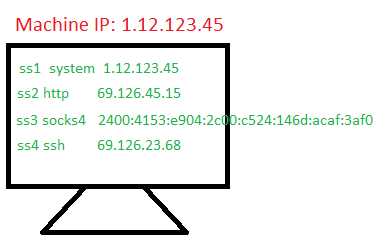
By Session IP + 1.12.123.45              -> blocks ss1
By Session IP + 69.126.*,1.12.123.45     -> blocks ss1, ss2 and ss4
By Machine IP + 1.12.123.45              -> blocks all four sessions (the rule matches the machine's IP)
Broad rules like 69.*, or By Machine IP rules, can cut more traffic than you expect.
Macros tab#
A macro is a script that runs automatically once your page has opened, to scroll the page, click links, fill in forms, and so on. To learn how to write macros, see What is a macro?.
| Field | Description |
|---|---|
Main macro PREMIUM |
Runs in the main window, where the campaign URL opens. Up to 65535 characters. |
Popup macro VIP |
Runs in every popup opened during the visit, so it only has an effect when Max popups is greater than 0. Up to 65535 characters. |
Browser Settings tab#
This tab controls how the session's browser views your page.
| Field | Description |
|---|---|
Viewer version |
All versions (default), v3 or v6. Pinning a version narrows the pool of sessions; do it only when your macro needs that exact version. |
Accept languages |
The session's browser language, chosen by country (choosing Spain gives Spanish); the list has Select All / Deselect All. Leave it empty to not force a language. This is not a filter like Visitor countries. |
Javascript |
Defaults to Enabled. If you turn it off, most analytics tools won't record the visit, and macros stop working too. |
Images |
Defaults to Enabled. Turning it off makes the page lighter, but measurement tools that rely on tracking images won't record the visit. |
Cookie |
New campaigns default to Disabled: each visit is a new visitor. With Enabled, the session looks like a returning visitor. |
Ad Safe PREMIUM |
Stops the session from loading ads from the networks you choose (Google Ads (Adword), MGID) or from domains you type. |
Force hide VIP |
Fully hides the browser window while it views your page. |
Fingerprint spoof VIP |
Randomizes the browser fingerprint on each visit, so visits look like they come from many different devices. New VIP campaigns default to Enabled. |
Web security VIP |
The browser's same-origin policy; defaults to Enabled. Turn it off only when your macro needs to work with an embedded frame (iframe) from another domain. |
Pages with ads
If you don't want exchange traffic to generate ad impressions on your page, set Ad Safe to
protect your ad account.
Platform tab#
This tab decides what device the session's browser claims to be (the user agent string). It does not filter sessions; it only changes how the visit appears to your page.
| Field | Description |
|---|---|
User Agent Source |
Splits 100% between System (generated by the system from the two bars below), Fixed (each session keeps one fixed user agent) and Custom (user agent groups you saved). Defaults to System 100%. |
Operating systems (%) |
Shares of Windows, Linux, MacOS, Android, iOS, adding up to 100%. |
Browsers (%) |
Shares of Chrome, Edge, Opera, Safari, Firefox, adding up to 100%. The defaults already follow real-world market share. |
Custom user-agents |
Shown when Custom is greater than 0: check your user agent groups (searchable by name). The shares are split evenly among the checked groups and you can edit them by hand; they must add up to exactly 100%. Check at least one group, or set Custom back to 0%. Only PREMIUM or higher can create groups; see Manage custom user agents. |