API and MCP#
9Login has an API that runs right on your computer, so your programs or scripts can create, edit, open
and close profiles and manage proxies instead of you doing it by hand. The same API has an MCP
endpoint, so AI assistants such as Claude Code, Cursor or VS Code can control 9Login and work inside
running profiles. All the settings are in the API & MCP section of the app.
What the API and MCP are for#
- API: your program (Python, Node.js, curl...) calls 9Login to manage profiles, proxies, cookies, extensions, scripts, tasks, cloud data and browser windows.
- MCP: an AI assistant uses those same commands, based on what you ask it in plain words. When allowed, it can also work inside running profiles: read pages, take screenshots and run macros.
A few things people often automate:
- Create profiles in bulk from a proxy list pulled from your own system, and attach tags and scripts to them.
- Every morning, open a group of profiles, let their scripts finish, then close them (a task does this on a schedule without any code of your own).
- Check the proxies of all profiles and report the ones that no longer work.
- Ask an AI assistant: "open profile shop-01, go to the orders page and summarize the new orders", or "take a screenshot of the home page in every running profile".
- Ask an AI assistant to write a proxy script for your proxy provider: it reads how proxy scripts work, tests the script, then adds it to your proxy list. Give it the provider's API details and your key. It can also read and fix a script you already saved.
Plans and sub-users#
The API and MCP are a paid plan feature. On the Free plan, the API & MCP section still opens so you
can read the documentation, but the switches are locked. The API runs only while 9Login is open and
signed in.
Sub-users can use the API and MCP too, with exactly their own permissions: they see only the profiles assigned to them, and commands that need a permission they do not have are refused (see Teamwork).
Turn on the API#
- Click
API & MCPin the sidebar. - Turn on
Enable the API. The first time you turn it on, the app creates a key for you. - Copy the
API address(for scripts and programs) or theMCP address(for AI assistants), along with theKey, into your tool. TheConnect a toolsection has ready-made sample configurations for Claude Code, Cursor, VS Code, curl, Python and Node.js, with the key already filled in.
The status line at the top of the screen shows whether the API is running (Running on ...) or off.
The default Port is 37286. If another program is using this port, enter a different port (1024 to
65535), click Apply, then update the address in your tool. In your tool, use 127.0.0.1 instead of
localhost.
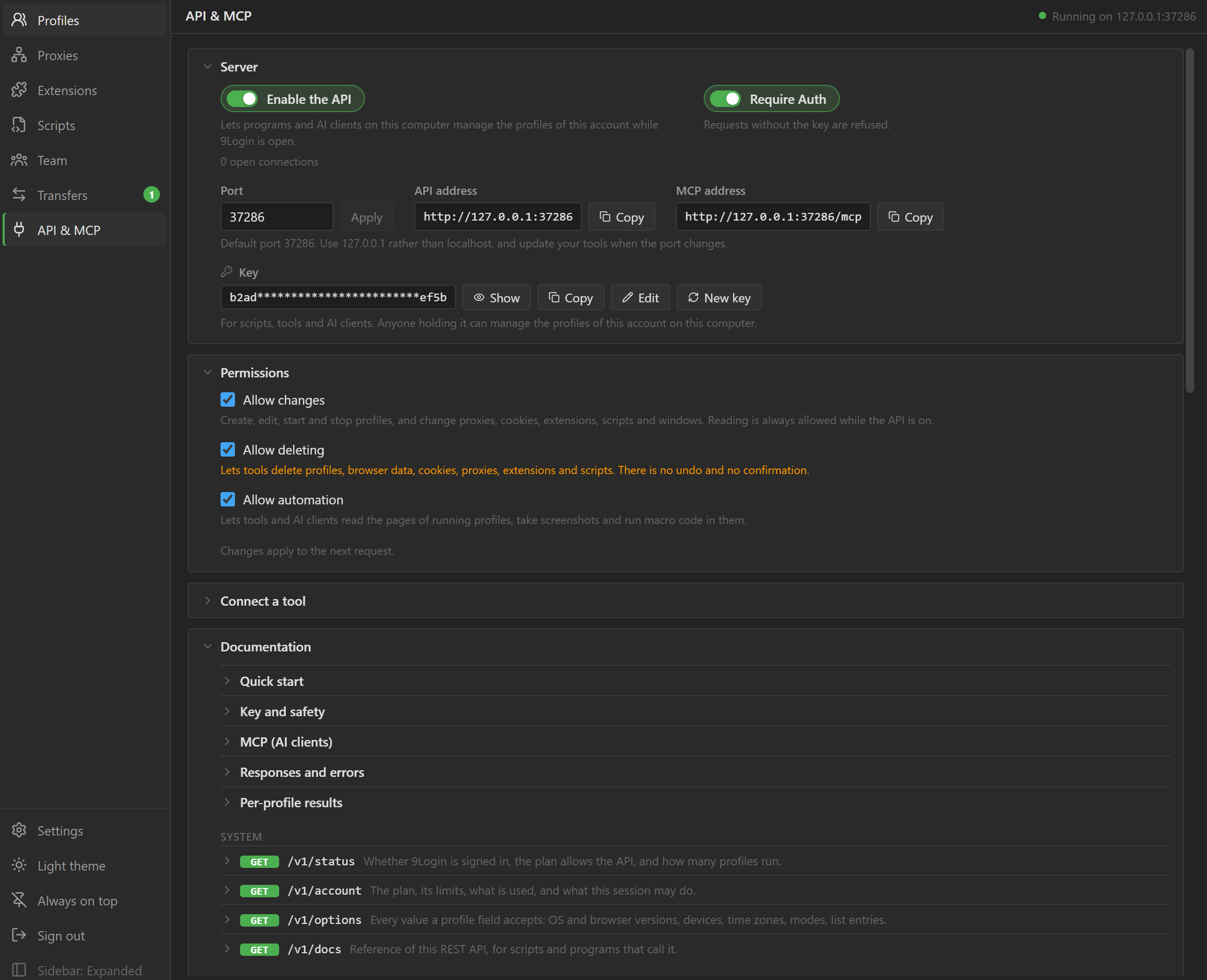
Permission switches#
| Switch | Allows |
|---|---|
Allow changes |
Create, edit, open and close profiles, run tasks, and change proxies, cookies, extensions, scripts, tasks and windows. On by default. When it is off, tools can only read. |
Allow deleting |
Delete profiles, browser data, cookies, proxies, extensions, scripts and tasks, with no confirmation and no undo. Requires Allow changes to be on first. Off by default. |
Allow automation |
Read pages, take screenshots and run macros in running profiles. Off by default. |
Changes take effect from the next command. Profiles in a Sync control session do not accept automation commands.
The Require Auth switch (on by default) requires every command to include the key. If you turn it
off, any program that can reach the port can use the API and MCP without a key, including deleting
profiles when Allow deleting is on. Keep it on.
The Local only switch (off by default) accepts only commands addressed to this computer
(127.0.0.1). Leave it off when 9Login runs on a server or VPS and your tools call it from another
machine: open the port in the firewall of that machine, use its address in your tools, and keep
Require Auth on, because the key is then the only thing between the internet and your profiles.
Keep your key safe#
- Anyone who has the key can control your account's profiles on this computer, and read your proxy scripts with any provider key written in them. Do not paste the key anywhere public.
- If the key leaks, click
New keyto create a new one. Every tool that uses the old key stops working until you give it the new key. - Web pages you open in a browser cannot call the API. With
Local onlyon, only programs on this computer can reach it. - The key and settings belong to the account that turned on the API. If you sign in to a different account on this computer, the API turns off and the old key is deleted.
Full reference#
The full documentation is built into the API & MCP section, under Documentation: how
to send the key, every command with its fields and examples, error codes, limits and how to fix common
errors. The Activity section lists recent calls, which helps you check that your tool is making the
right calls.