Cookies and data#
This page covers a profile's browsing data: viewing, importing and exporting cookies; clearing data; and uploading data to the cloud so you can keep using the profile on another computer.
A profile's cookies#
Open the three-dot menu in the profile's ACT column and choose Cookies. The profile must be
stopped; while the browser is still open, this item is grayed out.
The Cookies - <profile name> box lists every cookie with Domain, Name, Value and Expires
(session cookies show Session). An H next to the name means HTTP only, an S means Secure.
- Search: type in the
Search...field to filter by domain, name, value or path. - Delete: check cookies, then click
Delete. The checkbox at the top of the table selects every cookie that matches the search, across all pages. Sites where you are logged in with those cookies will log you out. - Edit: you cannot edit cookies directly in the table. Export them, edit the text, then import it
again with
Merge.
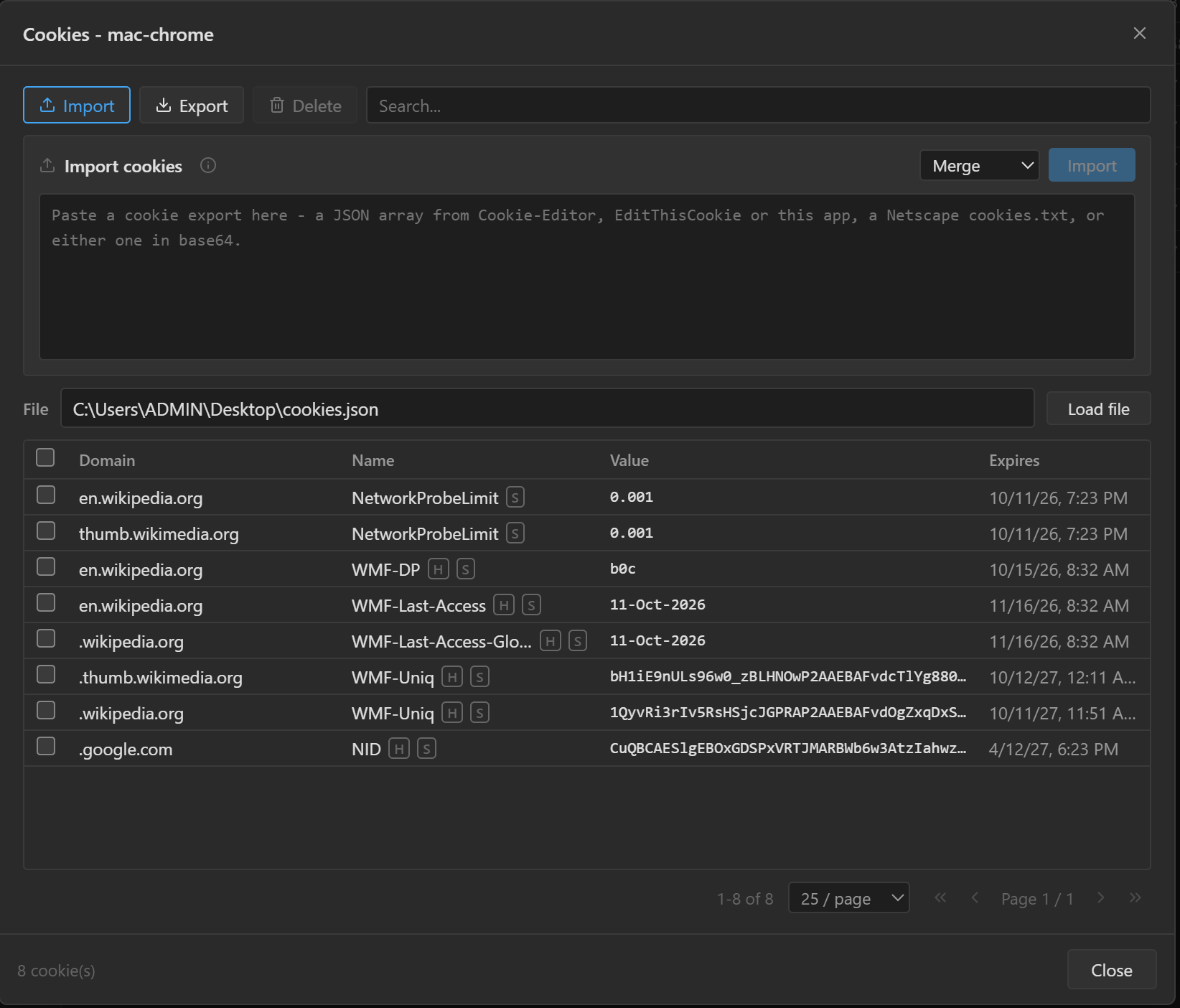
Import cookies#
- On the
Importtab, paste the cookies into the box, or type a file path in theFilefield and clickLoad file. - Choose
Merge(adds cookies and replaces those with the same domain, name and path) orReplace all(deletes all existing cookies before writing; the app asks you to confirm first). - Click
Import.
The app detects the format automatically: JSON exported from Cookie-Editor, EditThisCookie or 9Login,
a Netscape cookies.txt file, a cookie header string such as c_user=...; xs=..., or any of them in
base64. Invalid cookies are skipped, and the app reports how many and why. Cookies without an expiry
date are given one, a year after the import.
A cookie header string does not say which website it belongs to, so a Domain field appears next to
Merge: type the website, for example facebook.com. For Facebook, Instagram and X the app fills it in;
check it before you click Import.
Export cookies#
- On the
Exporttab, check the cookies to export in the table. If nothing is checked, there is nothing to export. - Choose
JSON,NetscapeorHeader. CheckBase64if you need a single unbroken string to paste.Headeris one line,name=value; ..., for one website only: search for the website first and check only its cookies. - Click
Copyto copy, orSaveto save to a file.
Cookies marked encrypted cannot be exported. Sub-users cannot export cookies.
Cookies you import or delete here change only on this computer, until you upload the data to the
cloud. To give a new profile cookies from the start, paste them into the
Initial Cookies field when you create the profile (see Profile settings). A
script can read and change the cookies while the profile is running, with the
cookie functions.
Clear data#
Use this when you want a profile clean again or need to free up disk space. It works on every plan.
- Stop the profile. Running profiles are skipped.
- For one profile: open the three-dot menu and choose
Clear. For several profiles: check them, then click the eraser button on the toolbar. - Choose in the confirmation box:
Cache only: clears only the cache, keeping cookies, logins and site data.Clear all: clears cookies, logins, cache and local storage.
The profile's settings and fingerprint are always kept.
Clear all clears data only on this computer. If the profile has cloud data, the next time it opens
the app downloads the cloud copy again (or asks first, when Sync automatically is off).
Cloud data#
Cloud data is a copy of the profile's browser data (cookies, login sessions...) stored on your account, so you can open the profile on another computer and still be logged in. This is a paid plan feature; on the Free plan the buttons below are grayed out.
Upload and download#
The profile must be stopped. For one profile, use the three-dot menu; for several profiles, check them, then use the two cloud buttons on the toolbar.
Upload data: uploads the data on this computer to the cloud. If the cloud has a newer copy (uploaded from another computer), the app asksOverwrite the cloud copy?. ClickPush and replaceonly when you are sure the copy on this computer is the one to keep.Download data: downloads the cloud copy and replaces the cookies and login sessions on this computer. The app asksReplace local data?; clickDownload and replaceto continue.
Sync automatically#
In Settings, under Cloud Data, turn on Sync automatically (off by default). The data then
uploads automatically once the browser has fully closed, and when you open a profile whose cloud copy
is newer, the app downloads it first.
When it is off, opening a profile with a newer cloud copy shows the Newer data in the cloud box:
Download first downloads and then opens, Open anyway opens with the data on this computer (you may
get logged out in both places), Cancel opens nothing.
If an automatic upload fails, the app shows Automatic upload failed. The data on the computer stays
intact; click Upload data again later.
What data is included#
Also under Cloud Data in Settings:
- Always included: cookies, saved form data, browser settings and bookmarks.
Local storage, extension data and open tabs: on by default, including extension data (for example crypto wallets).IndexedDB and history: off by default because it can be very large. Some sites store the login session itself here: turn it on if a profile opened on another computer is still logged out of that site.
Passwords saved in the browser and the cache are not included in cloud data.