Managing sessions#
Each session in Viewer is a separate browser with its own IP that views campaigns by itself to earn points for you. This page shows how to add sessions, assign proxies, run sessions in Viewer and monitor them on the dashboard.
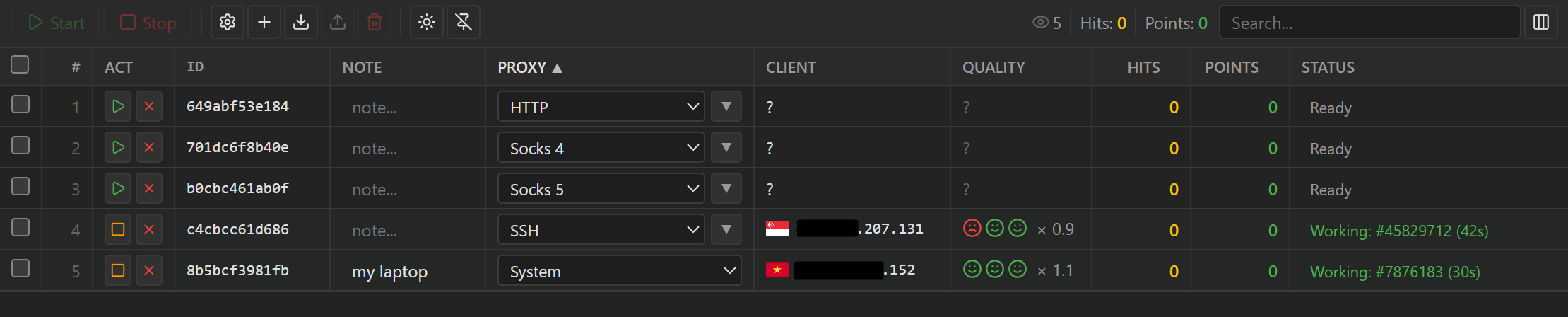
Table columns#
| Column | Content |
|---|---|
id |
Session ID generated by Viewer |
note |
Your note, editable right in the cell |
proxy |
Connection type and proxy, editable right in the cell |
client |
IP and country the session uses to reach the internet |
quality |
Three icons: proxy, connection speed, machine performance |
hits, points |
Number of views sent and points earned |
status |
Current status, for example viewing or proxy error; always shown |
In the quality column, a green smiling face means good, a yellow straight face means average, a red
sad face means poor, and a prohibition icon means rejected. Low-quality sessions and sessions that go
through a proxy earn fewer points; see How points work.
Add and remove sessions#
Add session(plus sign): creates a new session that usesSystemif the machine has noSystemsession yet, andHTTPotherwise.Import proxy list: creates many sessions at once; see Bulk import.- Export button: copies the selected sessions to the clipboard, as
Proxy listorFull sessions (JSON). - Delete button (trash can): deletes the selected sessions after you confirm. This cannot be undone.
Assign a proxy to a session#
In the proxy column, choose a connection type: System (the machine's real IP), HTTP, Socks 4,
Socks 5, SSH or ExProxy (gets a proxy from a proxy pool). Click the arrow next
to it to enter host:port, user and password; if you paste a full user:pass@host:port string
into the host:port field, Viewer splits it for you. For ExProxy, paste the pool key or URL. Each
IP can carry only one session, so each session needs its own proxy.
Bulk import#
Click Import proxy list, then paste one proxy per line, as host:port, host:port;user;pass or
user:pass@host:port. To set the type for a single line, put the type at the start (for example
socks5;host:port;user;pass); lines without a type use Default Proxy Type. You can also paste JSON exported with Full sessions (JSON): sessions with a matching id
are updated, and new sessions are added.
Search, start and stop#
Click a column header to sort. The search box filters the table as you type, and the column picker
next to it hides or shows each column (except status). Check the sessions you want (hold Shift to
select a range), then click Start or Stop; both buttons act only on the selected sessions. If a
session does not behave as expected, look at the status column first.
Monitor on the dashboard#
The Viewer Sessions page (menu 9Hits App > Viewer Sessions)
gathers the sessions from every machine where you run Viewer into one table. The data does not
refresh by itself: the Updated ... ago line tells you how old the data is, and Refresh reloads it.
- Stats bar at the top: the
Score(the share of pages that loaded correctly, 1 is best), average speed and performance, average earn rate, the number ofWorking/Waitingsessions, and totalHitsandPoints. These numbers cover exactly the sessions that match the current filters. -
Session table:
Column Content Session IPIP and country flag the session uses to reach the internet, with an IP type label: RResidential,BBusiness,VVPNReal IPReal IP of the machine running the session Note,TypeThe session's note and connection type VersionViewer version: green is the latest, red means you should update; the icon next to it shows the operating system Hits,PointsViews sent and points earned QualityThree icons for proxy, speed and performance; hover to see details RateThe session's earn rate; see How points work StatusA green dot means viewing ( Working), a blue dot means waiting (Waiting); hover to see details -
Filters: filter by
Status,Proxy type,Is proxy,Speed,Performance,Note,Version,IP type,IP version,Country, or type an IP into the filter box (choose whether to matchSession IPorReal IP). Click a value in theReal IP,NoteorTypecolumn, or an icon in theQualitycolumn, to filter by that value quickly.Resetclears all filters. - Delete: the
Deletebutton offersDelete selected,Delete by speed,Delete by performanceandDelete matched filter(deletes every session that matches the current filters; with no filter set, it deletes everything). This only cleans up the list on the dashboard: any session that Viewer is still running will show up again. To stop a session for good, stop or delete it in Viewer. Summary Statsat the bottom of the page breaks sessions down by proxy type, IP type, speed, performance and country.