9Hits Studio#
Studio is an app for writing and testing macros in a browser that you configure yourself. You sign in to Studio with your 9Hits account.
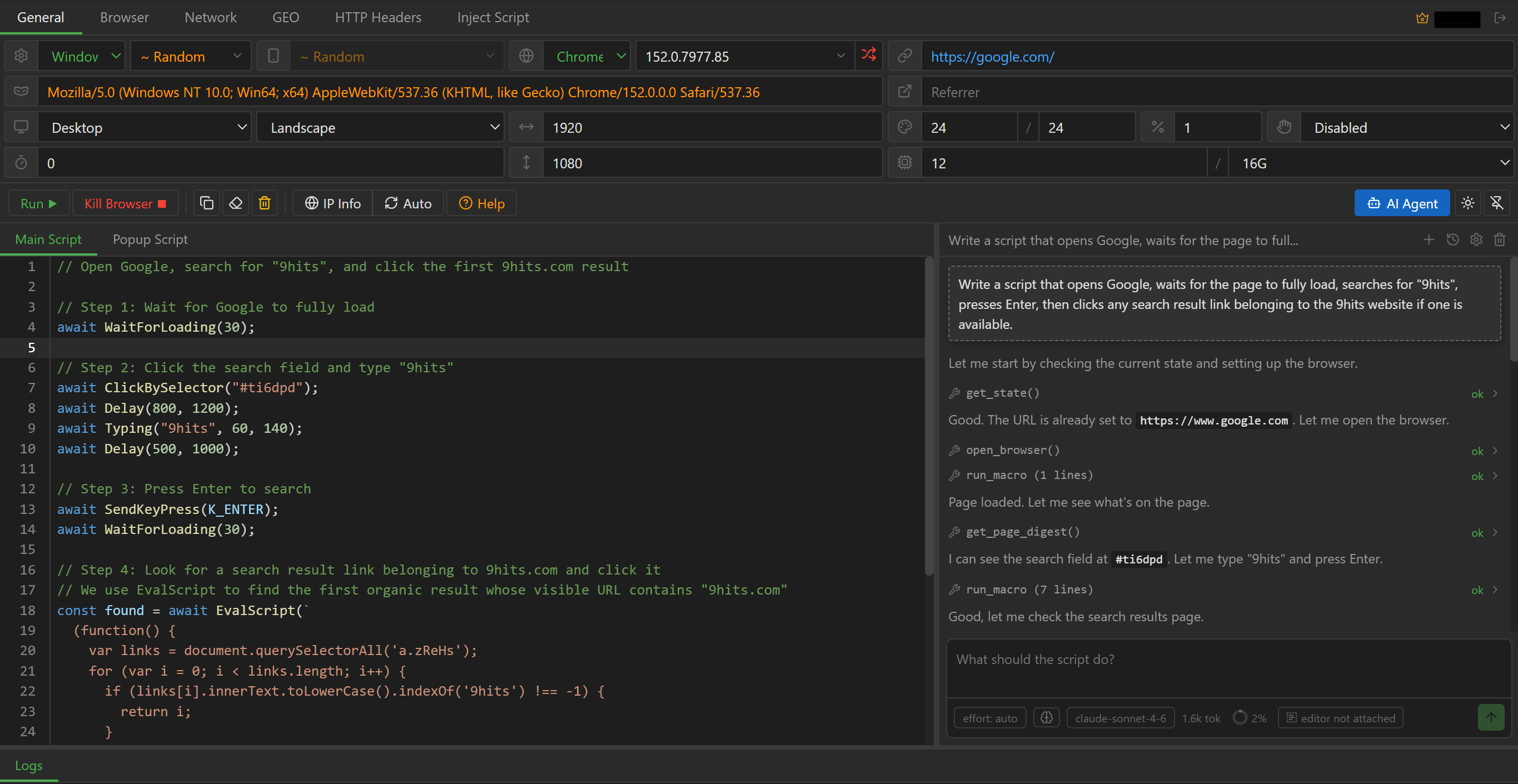
Six configuration tabs#
| Tab | What it configures |
|---|---|
General |
Target URL, Referrer, operating system, device, browser, User Agent, screen, run duration, CPU and RAM. The Gen Fingerprint button generates a new set of values. |
Browser |
Request blocking, show/hide window, Incognito, time zone, language, notification permission, WebGL, maximum number of popups, canvas, audio, client rect, fonts. |
Network |
Proxy (HTTP, Socks4, Socks5 or the system proxy), WebRTC mode, public IPv4/IPv6 address. Paste a whole user:pass@host:port string into the Proxy Server box and Studio splits it for you. |
GEO |
Geolocation mode, coordinates (typed in or taken from the IP), accuracy, altitude, heading, speed. |
HTTP Headers |
Headers to remove and headers to override, one header per line. |
Inject Script |
JavaScript that runs in every frame as soon as the page starts loading. |
IP Info and Auto#
These two toolbar buttons make the time zone, language, GEO coordinates and WebRTC IP match the
browser's IP (the proxy's IP if you set a proxy in the Network tab):
IP Infolooks up the IP when you click it and fills in fixed values. Use it for a proxy with a fixed IP.Autosets those four items toAuto (by IP)and looks them up again every time the browser opens. Use it only for rotating proxies, because the browser opens more slowly. If the IP lookup fails, the browser closes itself and theLogspanel shows(Auto by IP failed).
Test runs and logs#
Run opens the browser with the current configuration and both scripts, and Kill Browser closes it.
The configuration only takes effect when the browser opens, so after you change it, close the browser
and Run again. Each time the macro calls Log(), the log line appears in the Logs panel.
Next to them are three icon buttons: copy the script in the open tab, clear the log, and clear browser data (cookies, cache, storage; only while the browser is closed) to test again in a clean session.
Insert commands by picking on the page#
While the browser is open, you pick elements or areas right on the page with keyboard shortcuts.
Studio generates the matching command and inserts it at the cursor in Main Script, even for elements
inside an iframe.
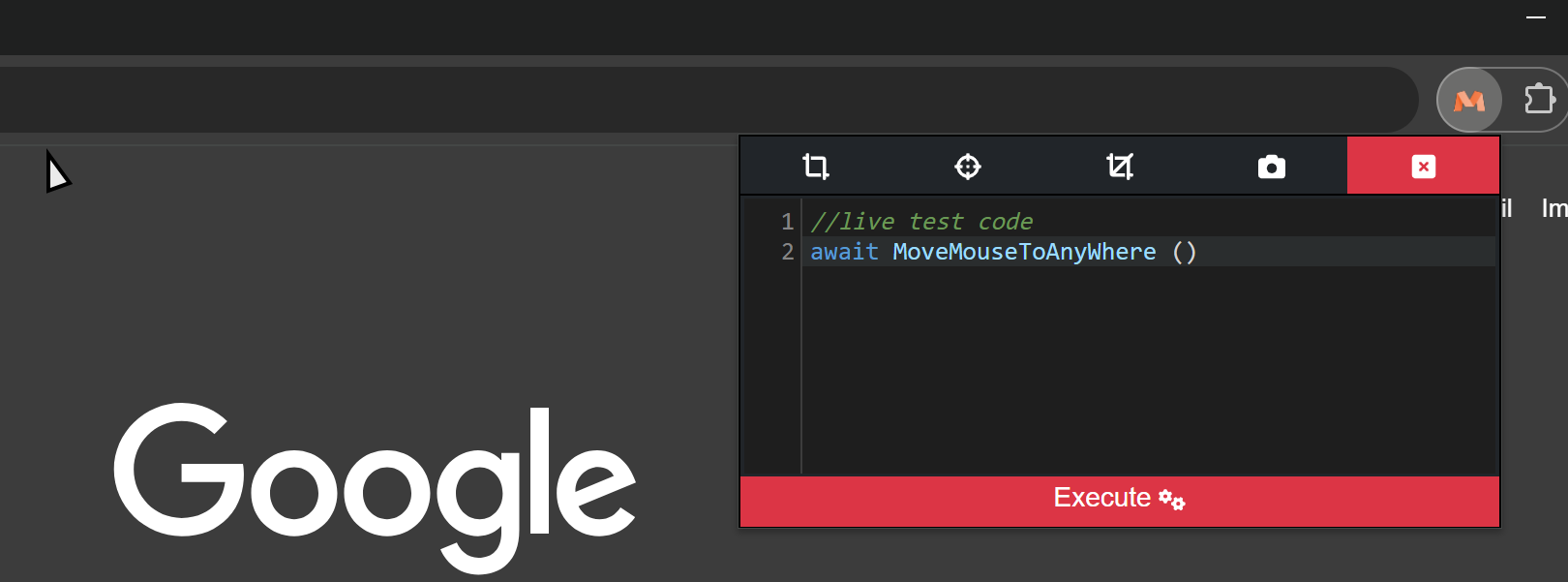
| Shortcut | Action on the page | Inserted command |
|---|---|---|
Alt+1 |
Drag to select an area | ClickByCoordinates |
Alt+2 |
Click the highlighted element | ClickBySelector |
Alt+Q |
Drag to select an area | CaptureArea |
Alt+W |
Click the highlighted element | CaptureElement |
Alt+S |
Turn off picking mode |
The generated selector follows the element's position, so it breaks easily when the page layout changes. Shorten it; see Iframes, selectors and waiting for elements.
Write scripts with AI#
The AI Agent panel is an AI assistant: you describe the task, and the AI looks at the page, tests the
script and writes it into the editor. The AI Agent button on the toolbar shows and hides the panel.
See Write scripts with AI.