Scripts#
9Login scripts are macros, with the same language and the same set of functions as 9Hits macros. Scripts are stored in your account's library; attach one to a profile and it runs every time the profile opens.
Script library#
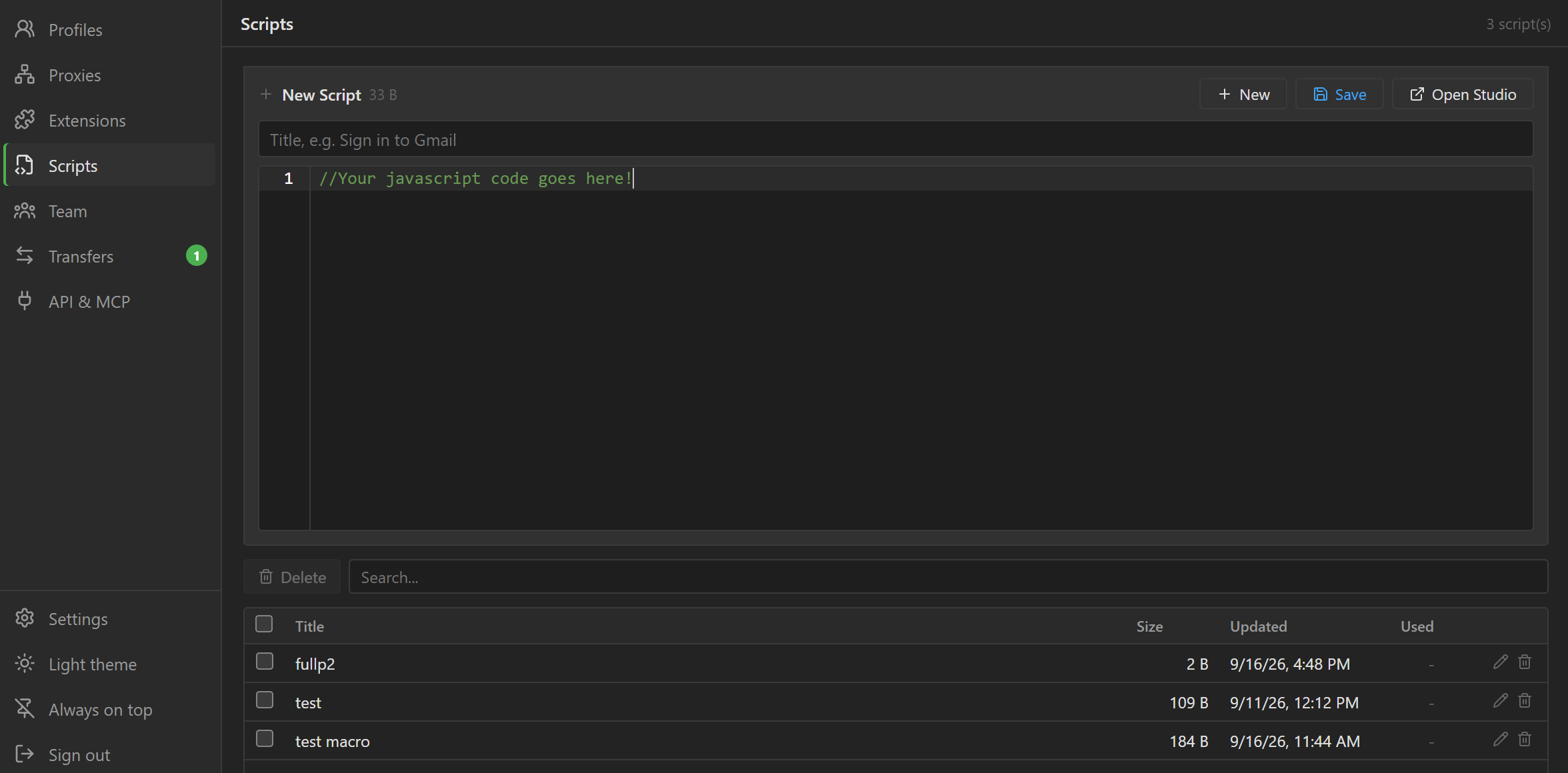
Click Scripts in the sidebar. At the top is the editor, with a title box and a code box; the code
box suggests function names and flags syntax errors as you type. Below it is the list of scripts with
their size (Size), last edit (Updated) and number of profiles using them (Used). The Refresh
button (circular arrows, top right) reloads the library from your account.
- Create: click
New, enter a title and code, then clickSave(or pressCtrl+S). A script must have a title. - Edit: double-click a row or click the pen icon to open the script in the editor, make your
changes, then click
Save. Next to the editor title you seeUnsaved changeswhile there are unsaved changes, andSavedonce they are saved. - Delete: click the trash can on the row, or check several scripts and click
Delete. Profiles that use a deleted script open without a script. Deleting cannot be undone.
If the script was edited on another computer before you saved, the app asks which version to keep:
Keep mine, Load the other version or Save mine as a copy.
Write and test in Studio#
The library editor cannot test-run scripts. To write and test a script, click Open Studio: the app
opens 9Hits Studio, which is installed together with 9Login, where you run
the script in a real browser and see the log.
Studio does not pull scripts from the library, and the library does not pick up scripts from Studio.
When you are done testing in Studio, copy the code into the library editor and click Save. The list
of all functions is in the macro function list.
Attach a script to a profile#
- One profile: in the profile form, in the
Advancedgroup, choose the script in theScriptbox (Noneto remove it). The button next to theScriptlabel opens the script library. See Profile settings. - Many profiles: select the profiles, then use Bulk edit and set the
script on the
Scriptrow.
When the script runs#
The script runs every time the profile opens, as soon as the first page finishes loading. The profile still opens, but does not run the script, in these cases:
- The plan is no longer a paid plan. The app says
Opened without its script: scripts run on a paid plan only. - The script was deleted from the library. The app says
Opened without its script: it is no longer in your library. - The profile was opened in a Sync control session.
Choose Custom when the script matters
When On Startup is Restore, the browser reopens the tabs from the previous session. This can
throw the script off and make it run incorrectly. If the script matters, set On Startup to
Custom, with Start URL set to the page the script needs to start on.
Plans and permissions#
Scripts are a paid plan feature. When your plan expires, saved scripts stay in the library so you can view, copy or delete them, but you can no longer create or edit scripts.
Sub-users need the Manage scripts permission to create, edit and delete scripts in the library (see
Teamwork).