Tasks#
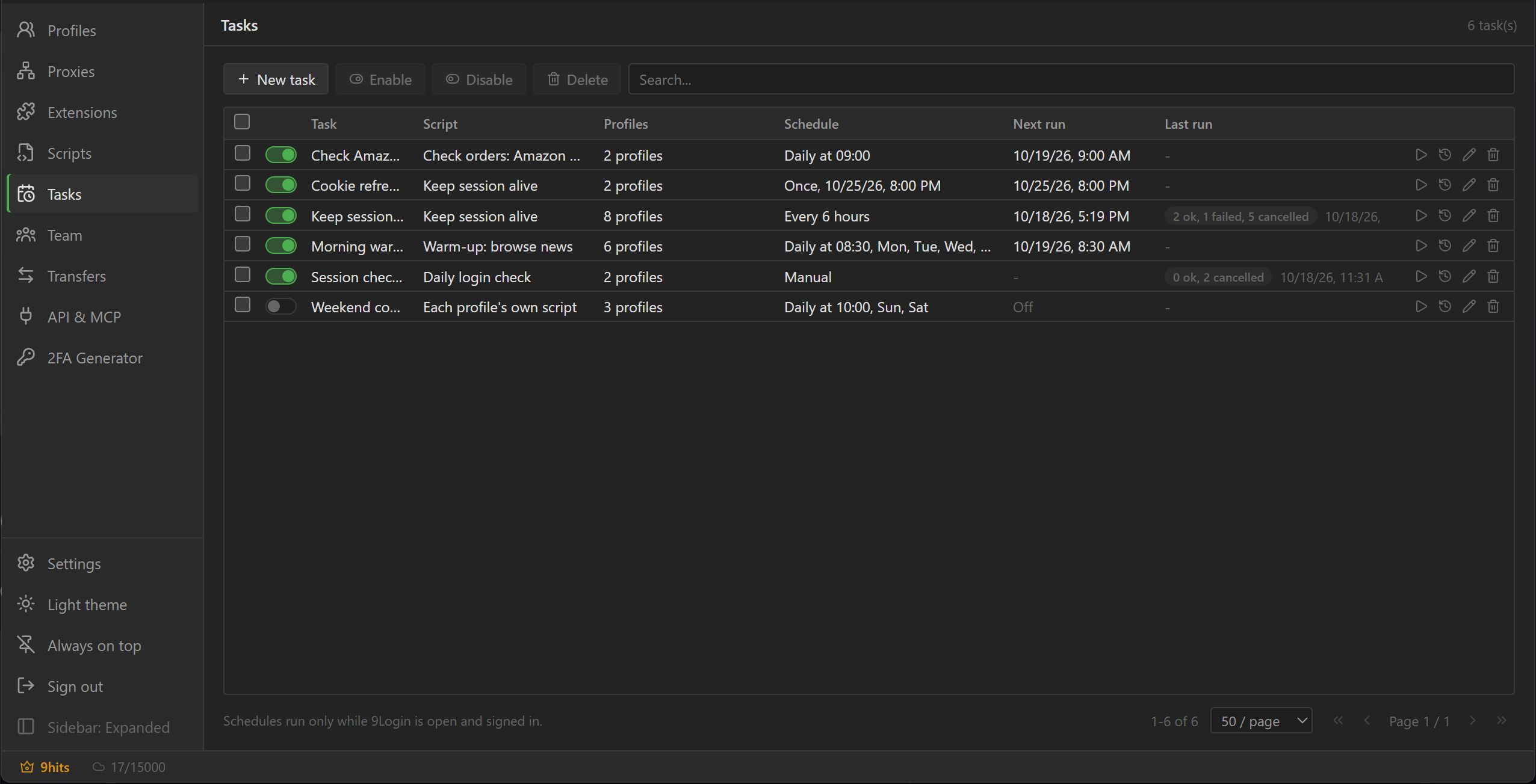
A task runs a script on a set of profiles on a schedule, or whenever you click Run now. Use it for
the routine work you would otherwise start by hand every day: warm up accounts, check orders, keep
sessions alive. Tasks are stored in your account, so you see the same list on every computer; the
Refresh button (circular arrows, top right) reloads it from your account.
Create a task#
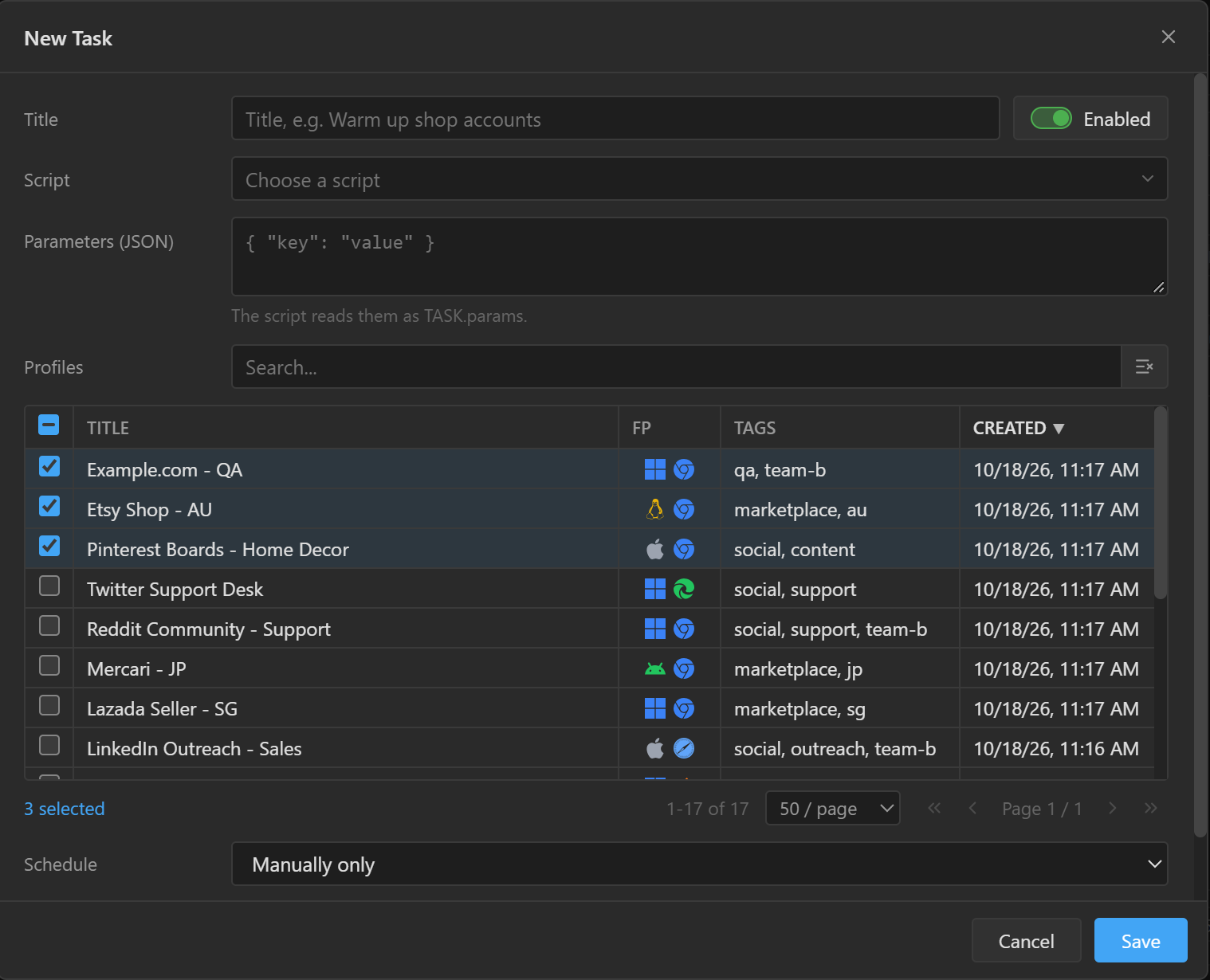
Click Tasks in the sidebar, then New task.
| Field | Meaning |
|---|---|
Title |
The name shown in the list. |
Enabled |
On: the schedule fires. Off: the task keeps its settings but the schedule does not fire. Run now works either way. |
Script |
Type to search your script library and pick a script. Each profile's own script runs the script set on each profile instead; profiles without one are skipped. |
Parameters |
Optional. A JSON object the script can read as TASK.params, for example { "pages": 3 }. The script also gets TASK.profileId and TASK.profileTitle. |
Profiles |
Tick the profiles the task runs on. The search box matches the same things as on the Profiles screen (title, tag, proxy, fingerprint, sub-user, ID); click a column title to sort; the box in the header ticks every profile that matches the search. Profiles run in the order you ticked them. |
Schedule |
Manually only, Once at a date and time, Repeatedly every N minutes or hours, or Daily at a time on the chosen weekdays (no day ticked means every day). Times follow the clock of the computer running 9Login. |
Open |
How many profiles run the script at the same time, and the random pause between two launches, in seconds, so the profiles do not all start at once. |
Click Save. The task list is one list for the whole account: if it was changed on another computer
since you opened it, the app asks you to load the newer version first; your edits stay in the form,
so you only need to click Save again.
Run and follow a task#
- Run now: click the play icon on the row. The task runs at once, on this computer, even when it is off.
- Stop: while a task is running, the play icon becomes a stop icon. Profiles that have not had their turn yet are marked cancelled, and every browser the run is working in is closed, including ones that were already open before the run.
- Next run shows when the schedule fires next on this computer; Last run shows the result of
the latest run as counts (
ok,failed,skipped). - History: click the clock icon to see the last 50 runs made on this computer. Select a run to see
each profile with its result, how long it took, what the script returned or why it failed, and its
log.
Clear historyremoves the runs of that task from this computer. - Enable / Disable: tick tasks and use the two toolbar buttons to turn their schedules on or off
together. A task that is off keeps its settings, and
Run nowstill works on it.
How a run behaves#
- A profile that is already open gets the script in its open browser, whether you opened it, another task did, or a previous run left it open. The script starts on whatever tab and page is open at that moment, so a script meant for tasks should go to the page it needs first.
- A profile that is not open is opened with its normal settings first. When the script finishes, the
browser stays as the profile and the script left it: close it from the script with
Exit(), or setDuration (seconds)in the profile settings so the browser closes by itself. Use the profile'sVisibilitysetting to run the browser hidden. - A profile is skipped, with the reason in the history, when another script or automation command is already running in it, when it is in a Sync control session, or when another computer signed in to your account opened it.
- Schedules fire on every computer where 9Login is open and signed in to the account. If two computers reach the same time, a profile runs on the computer that has it open and is skipped on the other.
- A firing that falls while 9Login is closed is skipped, not run late. A firing that falls while the previous run of the same task is still going is skipped too.
- A computer runs at most three tasks at the same time; further tasks wait their turn.
Plans and permissions#
Tasks are a paid plan feature, like scripts. When your plan expires, saved tasks stay in the list so you can view or delete them, but schedules stop and you can no longer create, edit or run tasks.
Sub-users need the Manage scripts permission to create, edit and delete tasks (see
Teamwork). They can run the tasks they see on the profiles assigned to them.
Tasks are also available through the API and MCP: your programs and AI assistants can
list, create, run and cancel tasks and read the result of every profile in a run. The commands are in
the built-in documentation under API & MCP.