Profile settings#
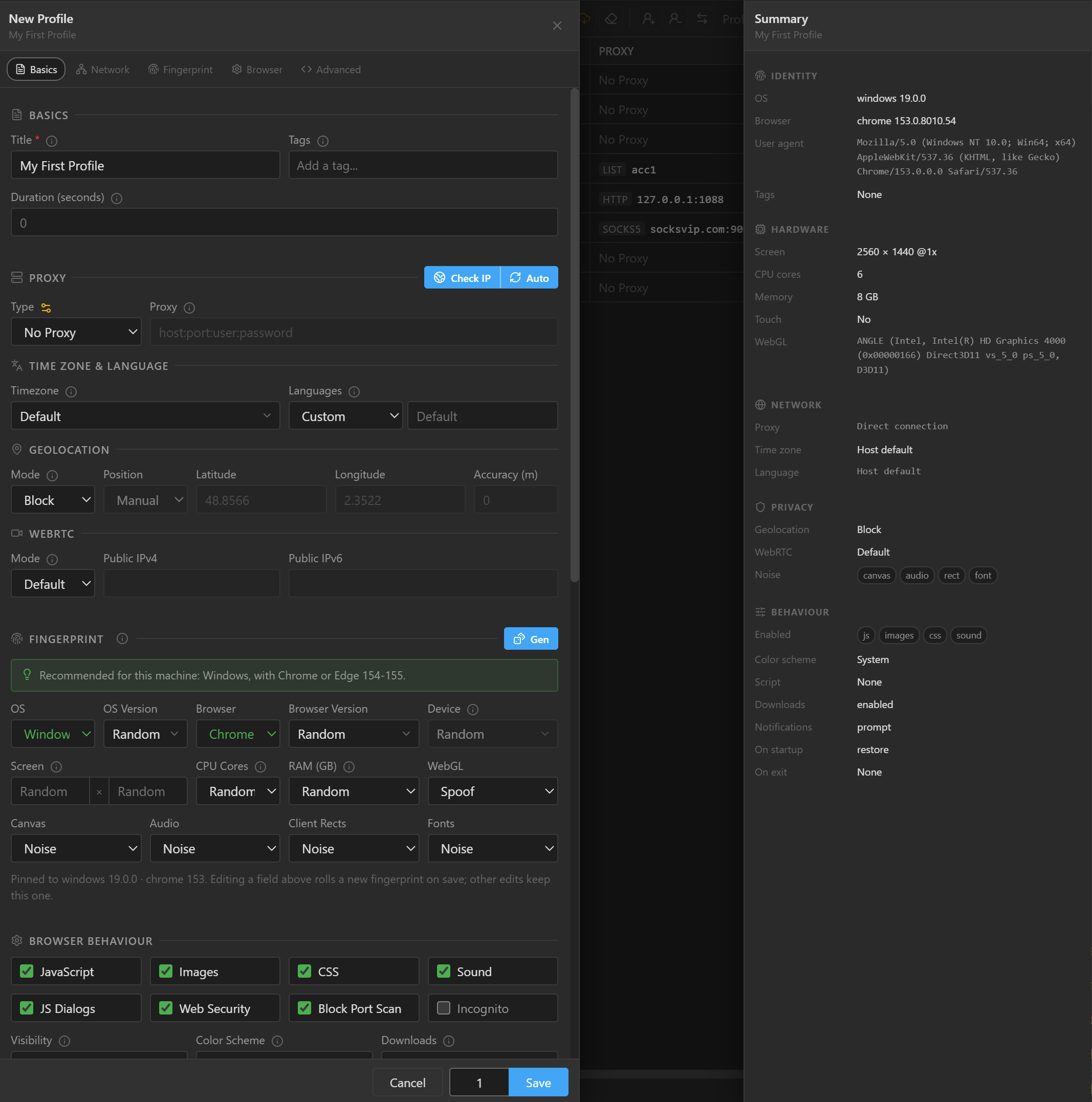
This page is a reference for every field in the profile form. Open the form with the New button on
the toolbar, or with the edit button on a row (Edit this profile). The form has five groups: Basics,
Network, Fingerprint, Browser, Advanced. The bar at the top of the form jumps to each group,
and any group with an invalid field turns red when you click Save. You can save only when the
profile has fully stopped.
Basics#
| Field | Meaning |
|---|---|
Title |
Profile name, required. Shown in the profile table and on the label in the browser's address bar. Supports name templates. |
Tags |
Short labels to group and find profiles. Type a tag and press Enter or a comma to add it; press Backspace in an empty field to remove the last tag. Up to 20 tags per profile. |
Duration (seconds) |
Closes the browser automatically after this many seconds. 0 keeps it open until you stop the profile. |
Name templates#
The Title field accepts the templates below. 9Login replaces each template with its real value when
you save, so the name stored in the profile is the replaced one. Templates work in the profile form,
when you rename a profile directly in the table, and when you rename profiles in bulk with
Bulk edit.
| Template | Result |
|---|---|
{INDEX} |
Sequence number 1, 2, 3... for each profile. |
{INDEX|10} |
Counts from 10: 10, 11, 12... {INDEX|0} counts from 0. |
{INDEX|1|3} |
Counts from 1, padded with zeros to 3 digits: 001, 002, 003... |
{DATE} |
Save date as YYYYMMDD, for example 20261012. The same for the whole batch. |
{TIME} |
Save date and time as YYYYMMDD-HHmmss, for example 20261012-153045. The same for the whole batch. |
{RAND} |
6 random characters (lowercase letters and digits), a different string for each profile. |
{RAND|8} |
8 random characters. |
- When you create several profiles and the name has no
{INDEX}or{RAND}, a sequence number is appended to the name:shopbecomesshop1,shop2... The same happens to a name with only{DATE}or{TIME}, because these two templates are the same for the whole batch; for readable names, add{INDEX}, for examplefb_{DATE}_{INDEX}. - A misspelled template (for example
{FOO}) stays in the name as is, so you can spot it easily.
Create several profiles at once. When you create a new profile, a quantity field sits next to the
Save button (up to 200). Set it above 1 and the button becomes Save N: one save creates N profiles.
Each profile gets its own fingerprint, generated from the same Fingerprint settings: a field left at
Random gets a different value for each profile, a field set to a fixed value is the same for all.
All other settings, including the proxy, are shared; to give each profile its own proxy, create the
profiles first, then hand out proxies with Bulk edit.
Example of creating 3 profiles at once on October 12, 2026:
Title |
Saved names |
|---|---|
acc_{INDEX} |
acc_1, acc_2, acc_3 |
acc_{INDEX|0} |
acc_0, acc_1, acc_2 |
US{INDEX|1|3} |
US001, US002, US003 |
fb_{DATE}_{INDEX} |
fb_20261012_1, fb_20261012_2, fb_20261012_3 |
shop |
shop1, shop2, shop3 |
ig_{RAND|5} |
for example ig_k3x9a, ig_0bq7m, ig_p2d8z |
Network#
This group holds everything tied to the IP that websites see: proxy, time zone, language, location and WebRTC.
Proxy#
The Type field:
| Option | Meaning |
|---|---|
No Proxy |
Connects directly through your computer's network. |
HTTP, SOCKS4, SOCKS5 |
A proxy of that type, entered in the Proxy field. |
SSH |
Uses an SSH server as the proxy, entered like a regular proxy. |
From my list |
Pick a proxy from your proxy list in the Proxy from list field. When you edit a proxy in the list, every profile that points to it follows the change. |
The gear button next to the Type label (Manage proxy list) opens the proxy list right inside the
form. Script-based proxies are created in the proxy list, see Custom script.
The Proxy field accepts the following formats, all saved the same way:
- For a proxy without login, leave out the
userandpasswordparts. - Without a port, 9Login uses 80 (22 for SSH).
- Do not add an
http://prefix. Put an IPv6 address in square brackets, for example[2001:db8::1]:8080.
Check IP#
Click Check IP at the top of the Proxy group to test the proxy you entered, without saving first.
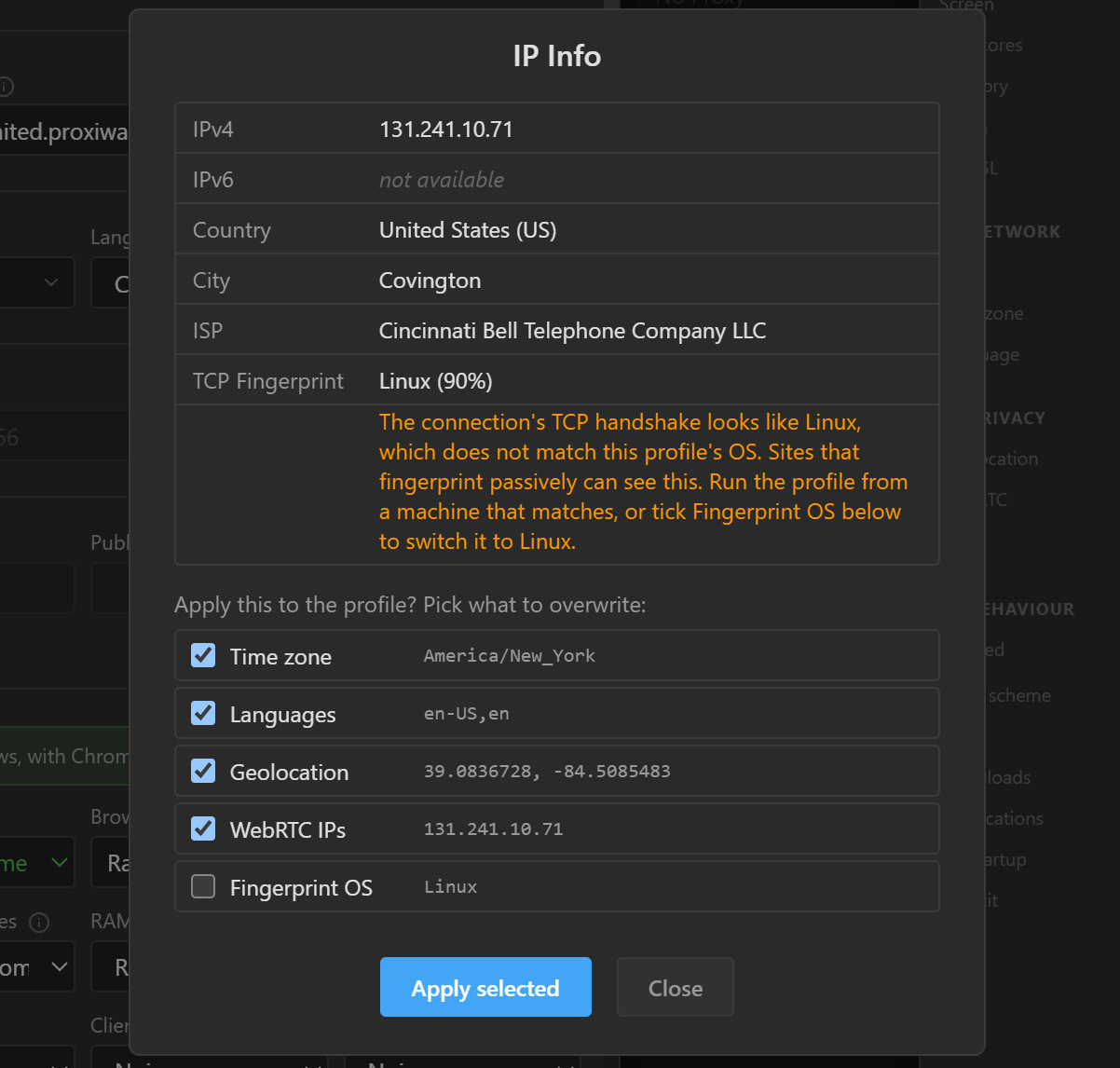
9Login connects through the proxy and opens the IP Info box:
IPv4,IPv6,Country,City,ISPof the IP that websites will see.TCP Fingerprint: the operating system that the proxy's connection looks like. If it differs from the profile's OS, the box warns that websites may notice this.
Below, check the values you want to write to the profile: Time zone, Languages, Geolocation,
WebRTC IPs (checked by default) and Fingerprint OS (changes the profile's OS to match the
connection, unchecked by default). Click Apply selected, then Save.
- These are fixed values: when the proxy's IP changes, they do not follow. Writing a field turns off
Auto (by IP)for that field. - Writing
Geolocationswitches the location mode toAllow. - Writing
Fingerprint OSchanges the OS, so the profile gets a new device when you save (see Fingerprint).
The box shows IP check failed when no response comes back through the proxy: check the address,
port and proxy account, and check that the proxy is still running.
Auto (by IP)#
Auto (by IP) takes the time zone, language, location and WebRTC IP from the proxy's IP each time the
profile opens, instead of fixed values. Use it only with rotating proxies (the IP changes between
opens); for a static IP proxy, clicking Check IP once is enough.
- To turn on all four, click
Autonext toCheck IP. To turn on a single field, chooseAuto (by IP)inTimezone,Languages, thePositionfield ofGeolocation, or theModefield ofWebRTC. - The profile opens more slowly, because each time it opens 9Login has to look up the IP again through
the proxy. While this is on, a reminder line shows at the top of the
Time zone & languagegroup. - If the IP lookup fails, the browser is closed and the app shows an error that starts with
Auto (by IP). Check the proxy, then open the profile again.
Time zone, language, location, WebRTC#
| Field | Meaning |
|---|---|
Timezone |
Default uses your computer's time zone; Auto (by IP); or pick a time zone from the list (type to search, for example America/New_York). |
Languages |
Custom, then type a comma-separated list of languages, for example de-DE,de,en-US,en; leave it empty to use your computer's languages. Or Auto (by IP). |
Geolocation: Mode |
Block stops websites from getting the location; Ask makes the browser ask each time a page requests the location; Allow grants it automatically. |
Position |
Used with Ask and Allow. Manual: enter Latitude, Longitude (required) and Accuracy (m), the accuracy in meters. Or Auto (by IP). |
WebRTC: Mode |
Default does not interfere; Hide hides your IP from WebRTC; Spoof reports the Public IPv4 and Public IPv6 you enter (leave empty to hide); Auto (by IP) reports the proxy's IP. |
Custom script#
A Custom script proxy is a piece of JavaScript you write. It runs each time the profile opens to get
a proxy, for example by calling a provider's API to rent a new IP.
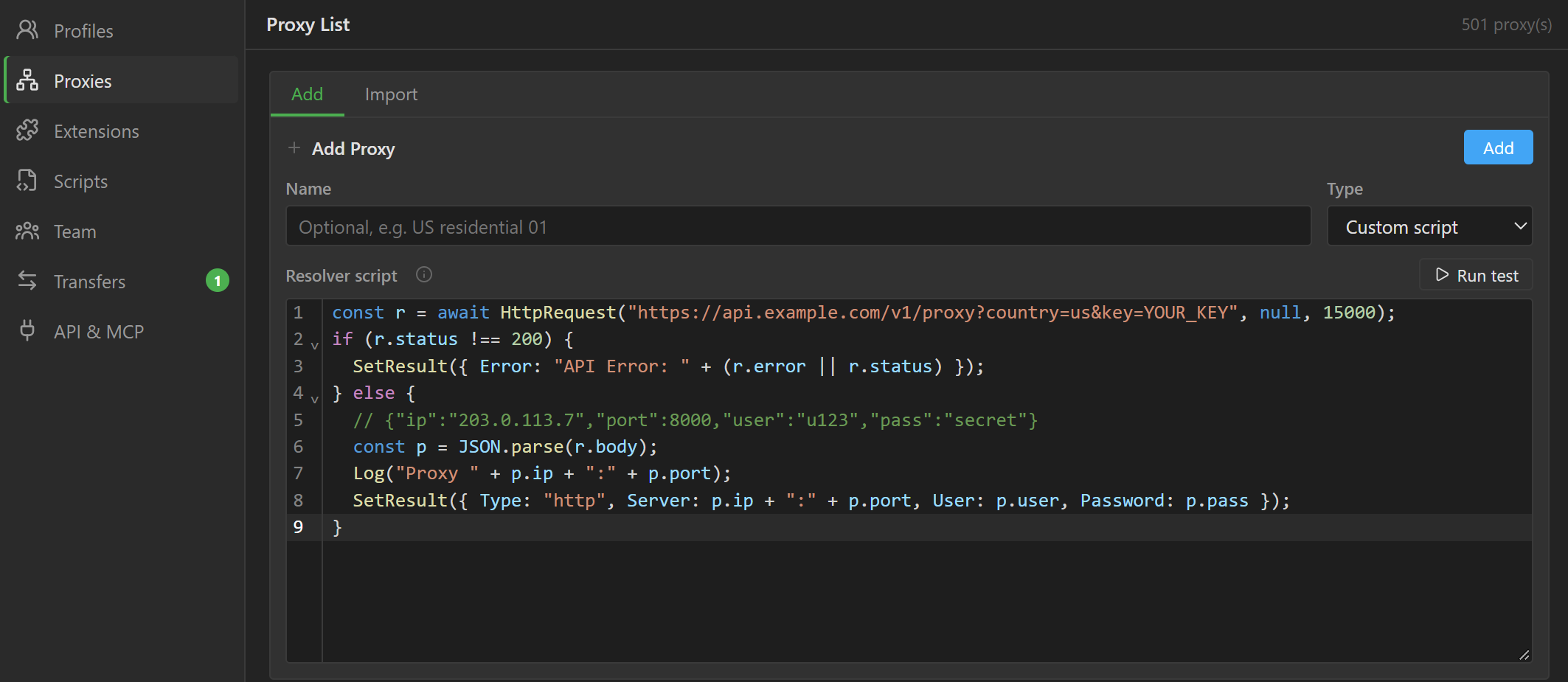
Where to choose it. You create proxy scripts in the proxy list:
- Open
Proxiesin the sidebar (or click the gear button next toTypein the profile form). - On the
Addtab, setNameand chooseCustom scriptas theType. - Write the script in the
Resolver scriptfield, clickRun testto try it, then clickAdd. - In the profile form, choose
From my listas theTypeand pick the proxy you just created.
Profiles that already use Custom script keep it, and you can still edit the script right in the form.
With an AI assistant. With API and MCP turned on, an AI assistant connected to 9Login can write the script for your provider, test it and add it to your proxy list (give it the provider's API details and your key), or read a script you already saved and fix it.
When the script runs: each time the profile starts (status Connecting proxy...), when you click
Check IP, and when you click Run test. The script must call SetResult within 2 minutes, or the
profile does not open.
How to write it:
- You can use
awaitdirectly at the top level of the script, andreturnto end it early. - The script can call only the functions and variables below, plus JavaScript built-ins such as
JSON,Math,Date,URL,atob,btoa,setTimeout. There is no browserfetchordocument: useHttpRequestfor network calls. - Every branch of the script must end with
SetResult. If the script throws an error partway, the profile does not open and the app shows that error message. - Variables declared in the script start over at every run. To keep a value from one start to the
next, put it in
Global. awaitevery request you start. An error inside a promise that nothing waits for stops every proxy script running at that moment, not only its own.Run testruns the script once:Loglines appear below the field, ending withScript returned http://...or an error message. ClickStopto stop it partway.
Example: rent a proxy from a provider's API
SetResult#
Passes the proxy to the profile. Only the first call takes effect.
Parameters
| Name | Description |
|---|---|
result |
An object {Type, Server, User, Password} to use a proxy, or {Error} to cancel this open. No other fields are allowed: a misspelled name (for example Sever) causes the error Unexpected property: Sever. |
Type |
"http", "socks4", "socks5" or "ssh". |
Server |
"host:port", without an http:// prefix; put IPv6 in square brackets. Without a port, 80 is used (22 for SSH). |
User |
Proxy username (optional). |
Password |
Proxy password (optional). |
Error |
Error message. The profile does not open and the app shows this message. |
Example
Log#
Writes a line so you can follow the script. While the profile is opening, the log line shows in the
profile's status column; during Run test, it shows below the script field.
Parameters
| Name | Description |
|---|---|
message |
The content to print. The value is converted to a string, so wrap objects in JSON.stringify. |
Example
HttpRequest#
Sends an HTTP request, for example to call a proxy provider's API. The request goes straight from your computer, not through any proxy.
Parameters
| Name | Description |
|---|---|
url |
Full address, for example "https://api.example.com/proxy". |
data |
Leave it out or pass null to send a GET. With a value, it sends a POST: a string is sent as JSON (application/json), an object as a form, an ArrayBuffer as binary. |
timeout |
Maximum wait time in milliseconds. 0 (default) waits up to 30 seconds. |
headers |
An object of headers to send, for example {"Authorization": "Bearer abc"}. Set Content-Type here to override the default type chosen from data. Default null. |
Returns
An object {status, headers, body}: status is the HTTP code, headers is an object
{name: value}, body is the content as a string. On a network error or timeout:
{status: 0, error}, with the reason in error.
Example
Delay#
Pauses the script for a while, for example to wait until the provider has the proxy ready.
Parameters
| Name | Description |
|---|---|
ms |
Pause time in milliseconds. |
Example
RandomInt#
Returns a random integer from min to max, both inclusive.
Parameters
| Name | Description |
|---|---|
min |
Lower bound, can be returned. |
max |
Upper bound, can be returned. If it is not greater than min, the function returns min. |
Returns
An integer.
Example
RandomArray#
Picks a random element from an array.
Parameters
| Name | Description |
|---|---|
array |
The array to pick from. |
Returns
One element of the array, or undefined when the array is empty.
ReadFile#
Reads a text file on the computer that is opening the profile, for example a proxy list you manage yourself.
Parameters
| Name | Description |
|---|---|
path |
Full path to the file, for example "C:/proxies/us.txt". |
Returns
The file content as a string, or null when the file cannot be read (it does not exist, no read
permission...).
Example
Profile#
A variable that holds information about the profile being opened.
Fields
| Name | Description |
|---|---|
Profile.Id |
The profile's ID. |
Profile.Title |
The profile's name. |
Profile.Index |
The profile's position in the list, counting from 0. Use it to give each profile a different proxy. During Run test or Check IP, the value is 0. |
Example
WorkingDir#
A variable that holds the path of the 9Login installation folder on the computer running it.
Example
Global#
An object that every proxy script shares while 9Login is open. It starts empty, keeps what scripts put in it from one profile start to the next, and is cleared when 9Login closes. Use it to read a large proxy file once instead of at every start, to hand out lines in turn across several starts, or to keep a provider's login token.
- Set properties on it (
Global.usList = ...). AssigningGlobalitself is an error. - All proxy scripts see the same object, so use names that belong to your script, such as
Global.usListrather thanGlobal.list. - When several profiles start at the same time, their scripts take turns: nothing else changes
Globalbetween two lines that have noawaitbetween them, but across anawaitanother script may have changed it. Run testuses the sameGlobalas profile starts.
Example: read a large list once, then give each start the next line
Common errors
| Message | What to do |
|---|---|
The proxy script did not finish in time. |
The script did not call SetResult within 2 minutes. Check that every branch ends with SetResult. |
The proxy script returned an empty or invalid server. |
Server is empty or not in host:port format. |
Invalid proxy type: ... |
Type is not http, socks4, socks5 or ssh. |
Unexpected property: ... |
The object passed to SetResult has an unknown field, usually because of a misspelled name. |
The proxy script returned an invalid result. |
SetResult received a value that is not an object. |
Assignment to constant variable. |
The script assigns Global itself. Set a property instead: Global.usList = .... |
Fingerprint#
This group decides the device that websites see. For fields left at Random, 9Login picks the value.
The hint line at the top of the group shows the OS and Chrome/Edge version that best match your
computer; in the Browser Version list, recommended versions are green.
| Field | Meaning |
|---|---|
OS, OS Version |
Windows, macOS, Linux, Android, iOS and their versions. Android and iOS require a paid plan (any plan from Starter up); Android and iOS profiles cannot open when the account has no plan. |
Browser, Browser Version |
Chrome, Edge, Opera, Firefox, Safari, depending on which browsers the OS supports. |
Device |
Phone model, Android and iOS only. Each model comes with its own screen, CPU and RAM; any field below that you set to a fixed value takes priority. |
Screen |
Width × height. Leave both empty to use the generated device's screen; if you set it, fill in both, each at least 100. |
CPU Cores |
Default reports your computer's real core count; Random follows the generated device; or pick a number. |
RAM (GB) |
Same as CPU Cores. Safari does not report RAM, and this field is locked for iOS. |
WebGL |
Default uses your real graphics card; Spoof reports the generated device's graphics card; Disabled turns off WebGL. |
Canvas, Audio, Client Rects, Fonts |
Noise adds noise so each profile gives its own result; Default leaves it unchanged. |
When the fingerprint is generated#
- When you save a new profile: the fingerprint is generated when you click
Save. - The
Genbutton: generates a new device right away from the fields in the group, with a preview in the Summary pane. It is saved only when you clickSave. - When you change a device field: if you change
OS,OS Version,Browser,Browser Version,Device,Screen,CPU CoresorRAM (GB), the profile gets a new device when you save. ChangingWebGL, the noise fields or fields in other groups keeps the fingerprint.
If a profile that has already been used (it has cookies, logins) is about to get a new device, the app
asks Change this profile's device?. The old device cannot be restored, and websites will see your
account coming from a different computer.
Upgrade the browser version, keep the device#
Each 9Login release ships with one browser version. After you update 9Login to a release with a newer
browser, profiles that declare an older version get a yellow mark in the FINGERPRINT column of the
table. Open the form: the Fingerprint group shows a yellow box with an Update to ... button (for
example Update to Chrome 152). Click the button, then Save:
- Only the version number changes; the device stays the same and it does not use up a new fingerprint.
- If you do not upgrade, the profile still starts normally; the yellow mark is only a reminder.
- Does not apply to Firefox, Safari and iOS.
- To upgrade many profiles at once, use
Update browser versionin Bulk edit.
The yellow box also shows when the version the profile declares is no longer fully covered by 9Login's
browser, or is newer than the browser in the 9Login release you are running; the Update to ... button
handles both cases. Unlike this button, changing Browser Version from the list gives the profile a
new device.
New fingerprint limit#
Each account has a quota of new fingerprints over the last 30 days. Creating a profile, saving after
clicking Gen or changing a device field, and New fingerprint in Bulk edit all use it up; upgrading
the browser version does not.
To see how many you have used, click the account name in the bottom-left corner of the 9Login window to
open the Account box and look at the New fingerprints (30 days) line. When you run out, creating
profiles and changing fingerprints are paused until the date shown in the message; you can still edit
other settings as usual.
Browser#
Browser Behaviour. All are on by default, except Incognito.
| Field | Meaning |
|---|---|
JavaScript |
Turning it off breaks most websites; use this only when scraping static pages. |
Images |
Turn it off to skip loading images and save proxy bandwidth. |
CSS |
Turn it off and pages show without styling. |
Sound |
Mutes all sound in the profile. |
JS Dialogs |
Allows alert(), confirm(), prompt() dialogs. |
Web Security |
Turning it off removes the same-origin policy. Use this only for testing. |
Block Port Scan |
Stops websites from probing localhost and your local network. Turn it off only when the profile needs to call a service running on your computer. |
Incognito |
Incognito mode: nothing is written to disk, and cookies and logins are lost when the browser closes. Websites cannot detect 9Login's incognito mode. |
Window and permissions.
| Field | Meaning |
|---|---|
Visibility |
Visible or Hidden. With Hidden, the browser still runs and pages still render normally; only the window sits off screen. |
Color Scheme |
The light or dark theme that websites see. System follows the computer that opens the profile, so the same profile can be light on one computer and dark on another; choose Light or Dark to fix it. |
Downloads |
Allow allows downloads, saved to the profile's MayDownloads folder; Allow+Del allows downloads but deletes the downloaded files automatically; Block blocks downloads. |
Notifications |
Default notification permission for websites: Ask, Allow or Block. |
On open and on close.
| Field | Meaning |
|---|---|
On Startup |
Restore (the default for new profiles) reopens the tabs from the last run; Custom opens the page in Start URL. |
Start URL |
The page that opens at each start, used only when On Startup is Custom. Leave it empty for a blank page. |
On Exit |
What happens when the browser window is closed: Do nothing; Re-open opens it again (stops by itself if the browser keeps exiting right away); Clear data deletes the profile's browsing data on this computer (cookies, logins, history); Clear+re-open clears and then reopens. Stopping the profile with Stop in 9Login does not trigger On Exit. |
Advanced#
| Field | Meaning |
|---|---|
Script |
A script from the script library, run each time the profile opens. Requires a paid plan. With On Startup set to Restore, the script may not run as intended; choose Custom if the script matters. The gear button opens the script library. |
Initial Cookies |
Only when creating a new profile: cookies the profile has from the start. Paste a JSON array, a Netscape cookies.txt file, a cookie header string (name=value; ..., then check Cookie domain), or any of them in base64. For an existing profile, manage cookies with Cookies in the profile's menu, see Cookies and data. |
Extensions |
Check extensions in the extension list to load them into the profile each time it opens; uncheck one and it is not loaded next time. Requires a paid plan. Manifest V2 extensions have an MV2 label. |
Inject Script |
JavaScript that runs on every page, as soon as the page starts loading. |
Request Blocking |
Off; URL patterns: URL patterns separated by |, for example *.doubleclick.net|*/ads/*; Regular expression: one regular expression. Enter the rules in the Rules field. |
HTTP Headers |
Remove Headers: one header name per line to remove, case-insensitive. Override Headers: one Name: value pair per line to set or replace a header. |
Summary pane#
The Summary pane on the right of the form summarizes the profile you are editing in the groups
Identity, Hardware, Network, Privacy, Behaviour, and updates as soon as you change a field.
For fields left at Random, this is where you see the real values that were generated: OS, browser,
device model, user agent, screen, CPU, RAM, WebGL card. A new profile has no fingerprint until you
click Gen or Save.