Manage proxies#
The proxy list is a shared store for all profiles: enter a proxy once, and any profile that needs it
picks From my list. Edit a proxy in the list and every profile using it changes with it.
Open the list#
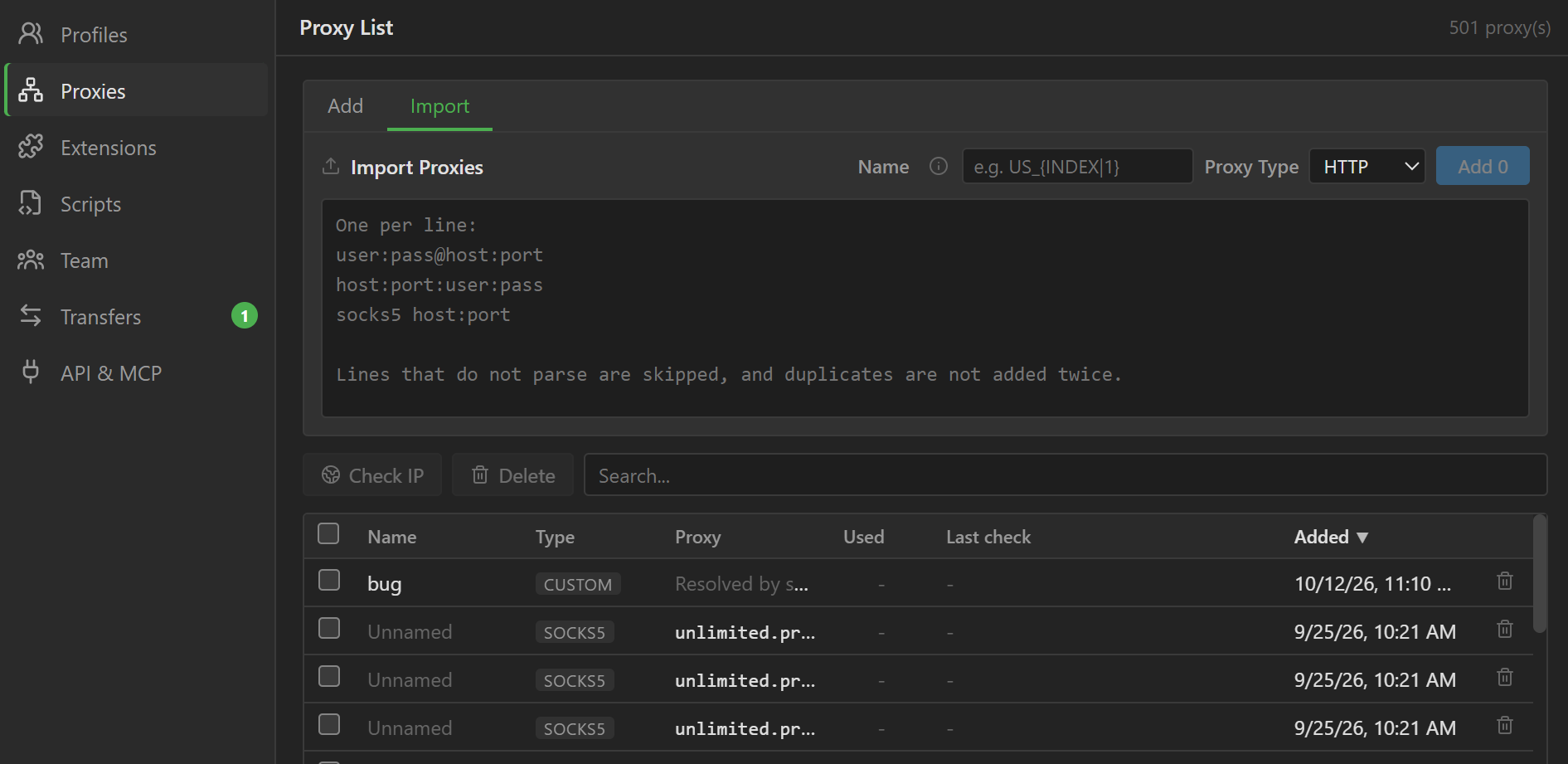
Click Proxies in the sidebar. The Proxy List screen has an input panel at the top (two tabs, Add
and Import) and the proxy table below. In the profile form, the gear button next to the Type box of
the proxy group also opens this list. The list lives on your account, so you see it on any computer
you sign in on. The Refresh button (circular arrows, top right) reloads it from your account, for
example after a sub-user added a proxy on another computer.
Add and edit a proxy#
- On the
Addtab, fill in:Name: an optional name, for exampleUS residential 01.Type:HTTP,SOCKS4,SOCKS5,SSHorCustom script.Proxy: an address in the formhost:port:user:password,user:password@host:port, orhost:port, with the parts separated by;,|or spaces. For a proxy that needs no login, leave out the user and password.
- Click
Add.
To edit, double-click a row: the first tab becomes Edit Proxy. When you are done, click Save, or
Cancel to discard. Every profile using that proxy gets the new address.
Import a whole list#
-
On the
Importtab, paste the proxies into the box, one proxy per line: -
Proxy Type: the type used for lines that do not start with a type. A line that starts withhttp,socks4,socks5orsshuses that type. -
Name: the name for the proxies added in this batch.{INDEX}numbers them:US_{INDEX|1}gives US_1, US_2, US_3...{INDEX|10}starts counting at 10.{INDEX|1|3}pads with zeros to 3 digits: 001, 002...
Without
{INDEX}, every proxy gets the same name. Proxies already in the list keep their old name. -
Click
Add N.
Lines in the wrong format are skipped. A proxy already in the list is not added a second time, and
the app reports N already in the list.
Sort, search and check IPs#
The table has the columns Name, Type, Proxy, Used (number of profiles using it), Last check
and Added (when it was added). Click a column header to sort by that column, and click again to
reverse the order. By default the most recently added proxies are on top. The Search... box filters
by name, address, user or type.
To test proxies, check one or more rows and click Check IP. The result shows in the Last check
column: the IPv4, IPv6 and country of the outgoing IP, or an error if the proxy does not respond. The
checkbox at the top of the table selects every proxy that matches the search box, across all pages, so
you can test the whole list at once.
Proxies from a resolver script#
A resolver script is a script that runs each time a profile opens and returns the proxy for that
launch, for example to get a rotating proxy from your provider's API. To add one, on the Add tab set
Type to Custom script, write the script in the Resolver script box, click Run test to try it,
then click Add. The Proxy column of that row reads Resolved by script. Profiles use it through
From my list like any other proxy. For how to write the script and the available functions, see
Custom script. An AI assistant connected through
API and MCP can also write, test and add these scripts for you.
Attach a proxy to a profile#
In the profile form, in the Network group (see Profile settings),
set Type to From my list, then pick the proxy in the Proxy from list box (type to search). The
PROXY column of the profile table shows the LIST label with the proxy name. To attach proxies to
many profiles at once, use Bulk edit: one proxy per profile (One each)
or the same proxy for all of them (Same for all).
Delete proxies#
Check the proxies and click Delete, or click the trash can icon at the end of a row. The app always
asks you to confirm, and deleting cannot be undone.
If profiles are using the proxy, the confirmation box tells you how many profiles are affected. After
you delete it, those profiles have no proxy: the PROXY column shows Entry deleted, and the profile
will not open (it reports This profile points at a proxy that is no longer in the list.) until you
pick another proxy.
Sub-user permissions#
Sub-users need the Manage proxies permission to add, edit, import and delete proxies. Without it,
they can still view the list and use Check IP. Grant permissions in Teamwork.