Click and mouse functions#
Functions to click, move the mouse, press and drag, scroll with the wheel, and tap the page. The click functions use real mouse events and move the mouse to the element along a human-like path before clicking.
General notes:
- Coordinates are in pixels within the visible part of the page, with the origin
(0, 0)at the top-left corner. - The
ClickBy*andClickRandom*functions do not throw when a click misses. Instead they return an object witherrorand also write the error to the log. A return value ofundefinedmeans the element was found and clicked, not that the page has reacted; if you need to be sure, wait for the result withWaitForElmtBySelectororWaitForResponse. You do not need to callMoveMouseToElm*before clicking, because the click functions already move the mouse to the element. An element covered by another layer does not receive the click. - In a mobile session (
IsMobile()returnstrue), the click functions send a tap instead of a mouse click: there is no mouse path beforehand and no hover, so a menu that opens only on hover will not open; tap the button that opens the menu instead. To drag in steps, useSendMouseDown,SendMouseMoveandSendMouseUp: in a mobile session they act as touch and swipe.
ClickByClass#
Clicks the element whose class attribute contains the string className. This is a substring match,
so "btn" matches both "btn-primary" and "submit-btn".
Parameters
| Name | Description |
|---|---|
className |
String that must appear in the element's class attribute, for example "skip-button". |
index |
Which element to use when several match: a position counted from 0, or "random" to pick one at random. Default 0. |
clickCount |
Number of clicks; 2 is a double-click. Default 1. |
frameSearch |
Condition for finding the iframe that contains the element; leave it empty for the main frame. See Iframes, selectors and waiting. |
frameSearchType |
How to match frameSearch: "src-starts", "src-ends", "src-equals", "src-contains", "src-regex" or "frame-path". Required when you use frameSearch: if you leave it empty, the function works on the main frame. |
Returns
undefined when the click succeeds; {error, caller, args} when it fails, with the reason in
error (caller is "ClickBySelector").
Examples
ClickByCoordinates#
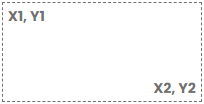
Clicks a random point inside the rectangle (X1, Y1) - (X2, Y2) of the visible page area, with no
element needed. The mouse moves along a curve from its current position to that point before clicking,
so two calls with the same arguments do not hit the same pixel. To click one exact point, set X1
equal to X2 and Y1 equal to Y2.
Parameters
| Name | Description |
|---|---|
X1 |
x coordinate of the top-left corner. |
Y1 |
y coordinate of the top-left corner. |
X2 |
x coordinate of the bottom-right corner. |
Y2 |
y coordinate of the bottom-right corner. |
clickCount |
Number of clicks; 2 is a double-click. Default 1. |
modifiers |
Keys held down at the same time: add up the constants WITH_ALT, WITH_CTRL, WITH_COMMAND, WITH_SHIFT (see Key constants). Default 0. |
button |
Mouse button: "left", "right" or "middle"; any other value is treated as "left". Default "left". |
Examples
ClickByCustomJS#
Clicks the element picked by a piece of JavaScript. Use it when a selector or xpath is not enough (for
example an element inside a shadow DOM, or a choice based on complex conditions). The function does not
scroll to the element; if the element may be off screen, call scrollIntoView() inside jsCode.
Parameters
| Name | Description |
|---|---|
jsCode |
A JavaScript expression whose value is the element to click (not a block of statements with return). It also accepts a function that returns the element: the function runs directly in the page, which avoids quoting trouble, but it cannot use the macro's variables. |
clickCount |
Number of clicks; 2 is a double-click. Default 1. |
frameSearch |
Condition for finding the iframe that contains the element; leave it empty for the main frame. See Iframes, selectors and waiting. |
frameSearchType |
How to match frameSearch: "src-starts", "src-ends", "src-equals", "src-contains", "src-regex" or "frame-path". Required when you use frameSearch: if you leave it empty, the function works on the main frame. |
Returns
undefined when the click succeeds; {error, caller, args} when it fails, with the reason in error.
Examples
ClickById#
Clicks an element by its id. The function has no index, because an id is usually unique on the
page.
Parameters
| Name | Description |
|---|---|
id |
The element's id, without the # sign. For an id that starts with a digit or contains special characters, use ClickBySelector("[id='...']"). |
clickCount |
Number of clicks; 2 is a double-click. Default 1. |
frameSearch |
Condition for finding the iframe that contains the element; leave it empty for the main frame. See Iframes, selectors and waiting. |
frameSearchType |
How to match frameSearch: "src-starts", "src-ends", "src-equals", "src-contains", "src-regex" or "frame-path". Required when you use frameSearch: if you leave it empty, the function works on the main frame. |
Returns
undefined when the click succeeds; {error, caller, args} when it fails, with the reason in
error (caller is "ClickBySelector").
Examples
ClickByName#
Clicks the element whose name attribute exactly equals the given value. Often used for form buttons
and fields.
Parameters
| Name | Description |
|---|---|
name |
Value of the element's name attribute, for example "submit". |
index |
Which element to use when several match: a position counted from 0, or "random" to pick one at random. Default 0. |
clickCount |
Number of clicks; 2 is a double-click. Default 1. |
frameSearch |
Condition for finding the iframe that contains the element; leave it empty for the main frame. See Iframes, selectors and waiting. |
frameSearchType |
How to match frameSearch: "src-starts", "src-ends", "src-equals", "src-contains", "src-regex" or "frame-path". Required when you use frameSearch: if you leave it empty, the function works on the main frame. |
Returns
undefined when the click succeeds; {error, caller, args} when it fails, with the reason in
error (caller is "ClickBySelector").
Examples
ClickBySelector#
Clicks the element that matches a CSS selector: it scrolls the element to the middle of the screen,
then clicks a random point inside it. Hidden elements (display: none, visibility: hidden) are not
counted. This is the most used click function.
Parameters
| Name | Description |
|---|---|
selector |
A CSS selector, for example "a[href*='9hits.com']". |
index |
Which element to use when several match: a position counted from 0, or "random" to pick one at random. Default 0. |
clickCount |
Number of clicks; 2 is a double-click. Default 1. |
frameSearch |
Condition for finding the iframe that contains the element; leave it empty for the main frame. See Iframes, selectors and waiting. |
frameSearchType |
How to match frameSearch: "src-starts", "src-ends", "src-equals", "src-contains", "src-regex" or "frame-path". Required when you use frameSearch: if you leave it empty, the function works on the main frame. |
Returns
undefined when the click succeeds; {error, caller, args} when it fails, with the reason in error.
Examples
Selector also matches a hidden copy
Some pages have two copies of the same element, one of them inside a hidden block. The click can
then land on the hidden copy and fail. Use ClickByCustomJS to pick the
element that has a real size.
ClickByTag#
Clicks an element by its tag name, for example "button", "a" or "iframe".
Parameters
| Name | Description |
|---|---|
tag |
HTML tag name, for example "button". |
index |
Which element to use when several match: a position counted from 0, or "random" to pick one at random. Default 0. |
clickCount |
Number of clicks; 2 is a double-click. Default 1. |
frameSearch |
Condition for finding the iframe that contains the element; leave it empty for the main frame. See Iframes, selectors and waiting. |
frameSearchType |
How to match frameSearch: "src-starts", "src-ends", "src-equals", "src-contains", "src-regex" or "frame-path". Required when you use frameSearch: if you leave it empty, the function works on the main frame. |
Returns
undefined when the click succeeds; {error, caller, args} when it fails, with the reason in
error (caller is "ClickBySelector").
Examples
ClickByXpath#
Clicks the first visible element that matches the xpath, after scrolling it to the middle of the
screen. The function has no index: to pick another element, put its position in the xpath itself.
You can build an xpath with GenerateXpath.
Parameters
| Name | Description |
|---|---|
xpath |
XPath expression for the element, for example "//button[contains(text(),'Accept')]". |
clickCount |
Number of clicks; 2 is a double-click. Default 1. |
frameSearch |
Condition for finding the iframe that contains the element; leave it empty for the main frame. See Iframes, selectors and waiting. |
frameSearchType |
How to match frameSearch: "src-starts", "src-ends", "src-equals", "src-contains", "src-regex" or "frame-path". Required when you use frameSearch: if you leave it empty, the function works on the main frame. |
Returns
undefined when the click succeeds; {error, caller, args} when it fails, with the reason in error.
Examples
ClickRandomExternalLink#
Clicks a random visible link that points to another domain, same as ClickRandomLink("external").
Parameters
| Name | Description |
|---|---|
frameSearch |
Condition for finding the iframe that contains the link; leave it empty for the main frame. See Iframes, selectors and waiting. |
frameSearchType |
How to match frameSearch: "src-starts", "src-ends", "src-equals", "src-contains", "src-regex" or "frame-path". Required when you use frameSearch: if you leave it empty, the function works on the main frame. |
Returns
undefined when the click succeeds; {error, caller, args} when it fails, with the reason in
error (caller is "ClickRandomLink").
Example
ClickRandomInternalLink#
Clicks a random visible link that points to the same domain as the current page, same as
ClickRandomLink("internal"). Often used to simulate a visitor moving on to another page of the same
website.
Parameters
| Name | Description |
|---|---|
frameSearch |
Condition for finding the iframe that contains the link; leave it empty for the main frame. See Iframes, selectors and waiting. |
frameSearchType |
How to match frameSearch: "src-starts", "src-ends", "src-equals", "src-contains", "src-regex" or "frame-path". Required when you use frameSearch: if you leave it empty, the function works on the main frame. |
Returns
undefined when the click succeeds; {error, caller, args} when it fails, with the reason in
error (caller is "ClickRandomLink").
Example
ClickRandomLink#
Clicks a random visible link on the page. Only links that have a real size and point to a web address
count; javascript: and mailto: links and a tags without an href are skipped.
Parameters
| Name | Description |
|---|---|
type |
Link type: "any" (all links), "internal" (same domain as the page) or "external" (another domain; a different subdomain also counts as different). Default "any". |
frameSearch |
Condition for finding the iframe that contains the link; leave it empty for the main frame. See Iframes, selectors and waiting. |
frameSearchType |
How to match frameSearch: "src-starts", "src-ends", "src-equals", "src-contains", "src-regex" or "frame-path". Required when you use frameSearch: if you leave it empty, the function works on the main frame. |
Returns
undefined when the click succeeds; {error, caller, args} when it fails, with the reason in error.
Examples
DragMouse#
Drags the mouse: presses and holds the button at the start point, moves along a curve to the end point, then releases. Use it for sliders and other draggable elements. If a coordinate is missing or is not a number, the function does nothing.
Parameters
| Name | Description |
|---|---|
from |
Point where the drag starts, as {X, Y} (upper case). |
to |
Point where the drag drops, as {X, Y} (upper case). |
speed |
Drag duration in seconds; the larger the number, the slower the drag. Any value that is not a positive number is treated as 0.5. Default 0.5. |
button |
Mouse button held while dragging: "left", "right" or "middle". Default "left". |
modifiers |
Keys held down at the same time: add up the constants WITH_ALT, WITH_CTRL, WITH_COMMAND, WITH_SHIFT (see Key constants). Default 0. |
Examples
HTML5 drag and drop
Many kinds of drag and drop on web pages (especially HTML5 drag and drop) do not respond to this action. Test it on the real page before you rely on it.
Drag in steps
DragMouse presses, drags and releases in a single call and cannot stop midway. To drag in steps
and check the page before dragging further (a slider that differs every time, or in a mobile
session), use SendMouseDown, SendMouseMove and SendMouseUp.
MoveMouse#
Moves the mouse between two points along a human-like curve, without pressing any button by default.
The longer the path, the longer it takes. The mouse jumps to startPoint before it sets off, so you
will usually want MoveMouseToArea or
MoveMouseToElmBySelector instead: both continue from the current mouse
position. Called between SendMouseDown and SendMouseUp, the
whole path is a single drag with the button held.
Parameters
| Name | Description |
|---|---|
startPoint |
Start point, as {X, Y} (upper case). |
endPoint |
End point, as {X, Y} (upper case). If either point is missing, the function does nothing. |
modifiers |
Keys held down at the same time: add up the constants WITH_ALT, WITH_CTRL, WITH_COMMAND, WITH_SHIFT (see Key constants). Default 0. |
button |
Mouse button held while moving: "none" (no button held), "left", "right" or "middle". Default "none". |
Example
MoveMouseToAnyWhere#
Moves the mouse from its current position to a random point in the visible page area, to simulate a mouse moving while idle. The function does not click, but the mouse may stop over a link or button and trigger a hover effect. Call it after the page has finished loading.
Parameters
| Name | Description |
|---|---|
modifiers |
Keys held down at the same time: add up the constants WITH_ALT, WITH_CTRL, WITH_COMMAND, WITH_SHIFT (see Key constants). Default 0. |
button |
Mouse button held while moving: "none" (no button held), "left", "right" or "middle". Default "none". |
Example
MoveMouseToArea#
Moves the mouse from its current position along a curve to a random point inside the given rectangle.
This is the usual way to bring the mouse to an area without ever landing on the same pixel twice. All
four coordinates must be numbers; otherwise the function writes an error to the log and does nothing.
You do not need to call this function before the ClickBy* functions.
Parameters
| Name | Description |
|---|---|
X1 |
x coordinate of the top-left corner. |
Y1 |
y coordinate of the top-left corner. |
X2 |
x coordinate of the bottom-right corner. |
Y2 |
y coordinate of the bottom-right corner. |
modifiers |
Keys held down at the same time: add up the constants WITH_ALT, WITH_CTRL, WITH_COMMAND, WITH_SHIFT (see Key constants). Default 0. |
button |
Mouse button held while moving: "none" (no button held), "left", "right" or "middle". Default "none". |
Examples
MoveMouseToElmByCustomJS#
Moves the mouse to the element picked by a piece of JavaScript (like the jsCode of
ClickByCustomJS) without clicking, for example to open a menu that appears on
hover. The function does not scroll to the element. If the element is not found, the function writes
an error to the log and does nothing.
Syntax
Parameters
| Name | Description |
|---|---|
jsCode |
A JavaScript expression whose value is the element to move the mouse to, or a function that returns the element, like the jsCode of ClickByCustomJS. |
frameSearch |
Condition for finding the iframe that contains the element; leave it empty for the main frame. See Iframes, selectors and waiting. |
frameSearchType |
How to match frameSearch: "src-starts", "src-ends", "src-equals", "src-contains", "src-regex" or "frame-path". Required when you use frameSearch: if you leave it empty, the function works on the main frame. |
modifiers |
Keys held down at the same time: add up the constants WITH_ALT, WITH_CTRL, WITH_COMMAND, WITH_SHIFT (see Key constants). Default 0. |
button |
Mouse button held while moving: "none" (no button held), "left", "right" or "middle". Default "none". |
Examples
MoveMouseToElmBySelector#
Scrolls the element that matches a CSS selector to the middle of the screen, then moves the mouse to it
without clicking, usually to open a menu that appears on hover. The parameter order differs from
ClickBySelector: there is no clickCount. If the element is not found, the function writes an error
to the log and does nothing.
Syntax
Parameters
| Name | Description |
|---|---|
selector |
A CSS selector, for example "nav .menu-products". |
index |
Which element to use when several match: a position counted from 0, or "random" to pick one at random. Default 0. |
frameSearch |
Condition for finding the iframe that contains the element; leave it empty for the main frame. See Iframes, selectors and waiting. |
frameSearchType |
How to match frameSearch: "src-starts", "src-ends", "src-equals", "src-contains", "src-regex" or "frame-path". Required when you use frameSearch: if you leave it empty, the function works on the main frame. |
modifiers |
Keys held down at the same time: add up the constants WITH_ALT, WITH_CTRL, WITH_COMMAND, WITH_SHIFT (see Key constants). Default 0. |
button |
Mouse button held while moving: "none" (no button held), "left", "right" or "middle". Default "none". |
Examples
MoveMouseToElmByXpath#
Scrolls the first visible element that matches the xpath to the middle of the screen, then moves the mouse to it without clicking. If the element is not found, the function writes an error to the log and does nothing.
Syntax
Parameters
| Name | Description |
|---|---|
xpath |
XPath expression for the element. You can build it with GenerateXpath. |
frameSearch |
Condition for finding the iframe that contains the element; leave it empty for the main frame. See Iframes, selectors and waiting. |
frameSearchType |
How to match frameSearch: "src-starts", "src-ends", "src-equals", "src-contains", "src-regex" or "frame-path". Required when you use frameSearch: if you leave it empty, the function works on the main frame. |
modifiers |
Keys held down at the same time: add up the constants WITH_ALT, WITH_CTRL, WITH_COMMAND, WITH_SHIFT (see Key constants). Default 0. |
button |
Mouse button held while moving: "none" (no button held), "left", "right" or "middle". Default "none". |
Examples
SendMouseClick#
Presses and releases the mouse right at coordinates x, y of the page area, without moving the mouse
there first. For a human-like path to that point, use ClickByCoordinates. In
a mobile session, the command is sent as a tap.
Parameters
| Name | Description |
|---|---|
x |
x coordinate of the click point. A negative or non-numeric value is treated as 0. |
y |
y coordinate of the click point. A negative or non-numeric value is treated as 0. |
button |
Mouse button: "left", "right" or "middle"; any other value is treated as "left". Default "left". |
repeat |
Number of clicks; 2 is a double-click. Default 1. |
modifiers |
Keys held down at the same time: add up the constants WITH_ALT, WITH_CTRL, WITH_COMMAND, WITH_SHIFT (see Key constants). Default 0. |
Examples
SendMouseDown#
Presses and holds a mouse button at coordinates x, y until you call SendMouseUp.
While the button is held, SendMouseMove and MoveMouse move the mouse with the button down, so the
page receives a drag. Use it when you need to drag in steps and check the page along the way, for
example a slider that differs every time. In a mobile session, the function puts a finger on the
screen.
Parameters
| Name | Description |
|---|---|
x |
x coordinate of the press point. A negative or non-numeric value is treated as 0. |
y |
y coordinate of the press point. A negative or non-numeric value is treated as 0. |
button |
Mouse button: "left", "right" or "middle"; any other value is treated as "left". Has no effect in a mobile session. Default "left". |
modifiers |
Keys held down at the same time: add up the constants WITH_ALT, WITH_CTRL, WITH_COMMAND, WITH_SHIFT (see Key constants). Default 0. |
Returns
undefined when the button was pressed; {error, caller, args} when a button is already held and
not yet released, or when the press failed.
Example
Warning
Always call SendMouseUp after SendMouseDown. The button stays held, even across macro runs,
until it is released, and the next SendMouseDown is rejected until then. The function presses
right at the given point without moving the mouse there first; for a human-like path, call
MoveMouseToElmBySelector or MoveMouse first, as in the example.
SendMouseMove#
Makes the pointer jump straight to coordinates x, y, with no path. For human-like mouse movement, use
MoveMouse, MoveMouseToArea or the click functions. The new
position is remembered; later mouse movement functions and SendMouseWheel continue from there.
Parameters
| Name | Description |
|---|---|
x |
x coordinate of the target point. A negative or non-numeric value is treated as 0. |
y |
y coordinate of the target point. A negative or non-numeric value is treated as 0. |
modifiers |
Keys held down at the same time: add up the constants WITH_ALT, WITH_CTRL, WITH_COMMAND, WITH_SHIFT (see Key constants). Default 0. |
button |
Mouse button held while moving: "none" (no button held), "left", "right" or "middle". Default "none". |
Example
Note
Called between SendMouseDown and SendMouseUp, the mouse moves
with the button held and the page receives a drag; in a mobile session, a finger moves across the
screen.
SendMouseUp#
Releases the mouse button held by SendMouseDown. In a mobile session, it lifts the
finger.
Parameters
| Name | Description |
|---|---|
x |
x coordinate of the release point. Leave it empty or pass a negative number to use the current mouse position. Default -1. |
y |
y coordinate of the release point. Leave it empty or pass a negative number to use the current mouse position. Default -1. |
modifiers |
Keys held down at the same time: add up the constants WITH_ALT, WITH_CTRL, WITH_COMMAND, WITH_SHIFT (see Key constants). Default 0. |
Returns
undefined when the button was released; {error, caller, args} when it could not be released.
Example
Note
The function releases the same button that SendMouseDown pressed. If no button is held, the
function just releases the left button once, which has no side effects.
SendMouseWheel#
Turns the mouse wheel once at the current mouse position, so move the mouse into the area you want to
scroll first. The sign of the scroll amount is the opposite of the usual browser convention: a negative
deltaY scrolls down and a positive one scrolls up. If you only need to scroll the page,
ScrollTo is more predictable; this function is for pages that listen for real
wheel events.
Parameters
| Name | Description |
|---|---|
deltaX |
Horizontal scroll amount in pixels: negative scrolls right, positive scrolls left, 0 means no horizontal scroll. |
deltaY |
Vertical scroll amount in pixels: negative scrolls down, positive scrolls up. |
modifiers |
Keys held down at the same time: add up the constants WITH_ALT, WITH_CTRL, WITH_COMMAND, WITH_SHIFT (see Key constants). Default 0. |
button |
Mouse button sent with the scroll: "left", "right", "middle" or "none". Default "left"; you rarely need to change it. |
Examples
SendTouch#
Touches the screen at one or more points at the same time, one finger per point. The function only touches and lifts; it cannot swipe or drag. Use it when the session emulates a touch (mobile) device.
Parameters
| Name | Description |
|---|---|
points |
Array of touch points {x, y} (lower case), one finger per point. Passing upper-case {X, Y} touches the (0, 0) corner. |
repeat |
Number of taps; 2 is a double tap. Any value that is not a positive number is treated as 1. Default 1. |
modifiers |
Keys held down at the same time: add up the constants WITH_ALT, WITH_CTRL, WITH_COMMAND, WITH_SHIFT (see Key constants). Default 0. |