Write scripts with AI#
The AI Agent panel in Studio is an AI assistant that writes macros: you describe the task, and the
AI looks at the page, tests the script and writes it into the editor. You use an API key from an AI
provider that you sign up with yourself, and that provider charges you for it.
Connect an AI provider#
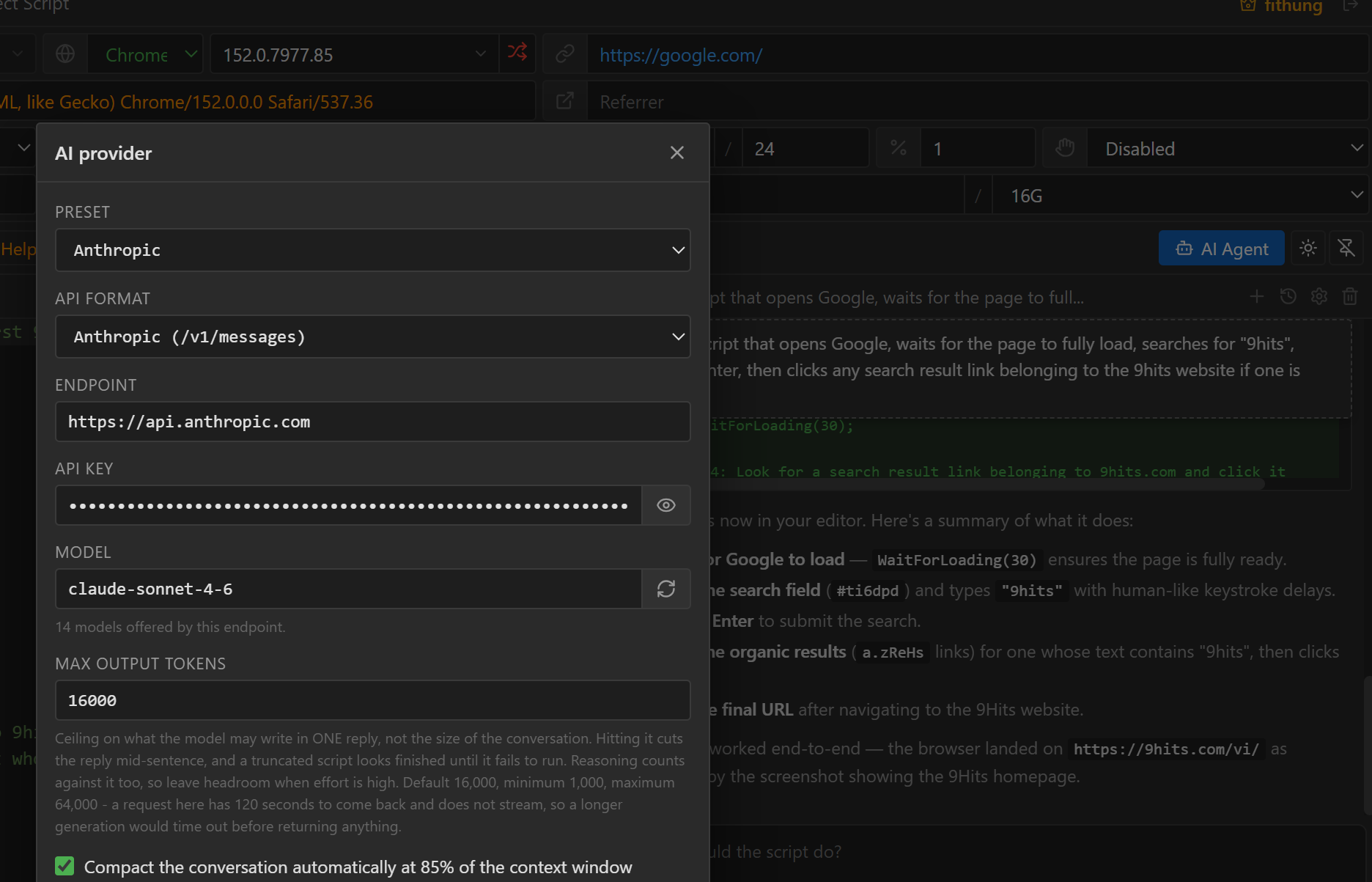
- Click the gear icon at the top of the
AI Agentpanel (if the panel is hidden, click theAI Agentbutton on the toolbar to show it). - Choose a
Preset:Anthropic,OpenAI,OpenRouter,DeepSeek,Ollama (local), orCustomfor another OpenAI-compatible service. The preset fills inAPI formatandEndpoint. - Paste your key into the
API keybox, then choose aModelfrom the list Studio loads from the endpoint (if there is no list, type the model name). - Click
Test connection, and when it reports success, clickSave.
Max output tokens is the maximum length of one reply (16000 by default); set it too low and long
scripts get cut off midway. Ollama (local) runs the model on your own machine and needs no key, but
you still have to type some string into the API key box.
Studio sends requests straight from your machine to the endpoint, not through 9Hits servers. The key is stored only on this machine.
Chat to get a script#
Type your request in the What should the script do? box and press Enter (Shift+Enter for a new
line). The AI can:
- Write or edit
Main Scriptdirectly, orPopup Scriptwhen you ask it to. The chat shows the change (Editor updated: +5 / -2); if you do not like it, press Ctrl+Z in the editor. - Change the configuration in the panel on the left, generate a new fingerprint, use
IP Info, and open and close the browser. - Look at the open page to pick the right selector, take screenshots, test pieces of code one at a
time, and read the
Logspanel. - Read and write files on your machine, make HTTP calls and run programs when needed.
Each action shows up as a line in the chat; click it to see the details.
The AI does not ask before it acts
Not even before it deletes files or runs programs on your machine. Watch the action lines and click stop as soon as you see something you do not want.
The bar below the input box:
| Button | What it does |
|---|---|
effort: auto |
How much effort the AI puts into each step: low is cheap and suits small edits; xhigh and max are more reliable for multi-step tasks but cost more. |
| Brain icon | Turns thinking on or off. Off is cheaper, but the AI is more likely to use tools the wrong way. |
| Model name | Switches models quickly. |
12 lines attached |
Main Script is sent with your message. Select a passage in the editor and the button changes to 3 lines selected, and the AI works on exactly that passage. Click it to stop sending the script. |
Conversations are saved. At the top of the panel: click the title to rename it, + starts a new
conversation, the clock icon reopens an old one, and the trash icon deletes the current one.
Write good requests#
- Describe each step the way a real person would do it, with the URL and the result you expect: "Open example.com, wait for it to finish loading, click the Sign up button, enter the email [email protected], submit the form, then Log the message that appears."
- Say whether the script is for a 9Hits campaign or only runs in Studio or 9Login, because campaigns block file, process and cookie functions.
- To change one spot, select that passage and then ask. If the script fails, tell the AI to "test it and fix it until it runs".
- One task per conversation: the longer the conversation, the more each turn costs.
- Do not send real passwords or sensitive data, because everything goes to the AI provider.
Attach images and files#
Paste an image (Ctrl+V) into the input box or drag and drop an image onto the panel. Images are numbered 1, 2..., so you can write "image 2" and the AI knows which one you mean. If you drag and drop another kind of file (CSV, TXT...), Studio inserts the file path into the input box so the AI can read the file itself.
The context ring#
The ring with a percentage below the input box shows how much of the context limit the conversation has used (the amount of content the model can read in one turn). The ring turns orange from 60% and red from 85%.
Click the ring to compact: the AI summarizes what it has done so far and drops the older part of the
conversation. Studio compacts automatically at 85% if the Compact the conversation automatically...
checkbox in the AI provider dialog is on. After compacting, the AI forgets details; if it starts
making mistakes, open a new conversation. The tok number next to the ring is the total number of
tokens used in the conversation, so you can estimate the cost.
Common errors#
| Message | What to do |
|---|---|
API key is empty - click to set up (or Endpoint is empty, Model is empty) |
Click that line and fill in the missing field. |
HTTP 401: ... |
The key is wrong or has been revoked. |
Other HTTP ... messages |
Read the error text: usually you are out of credit, over a rate limit, or using a wrong model name. |
The reply hit the max tokens limit and was cut off... |
Raise Max output tokens and ask the AI to do it again. |
... does not accept images |
The model does not accept images. Remove the images or switch models. |
| Red context ring, request rejected for being too long | Compact or open a new conversation. |
If a request fails right at the start, the message goes back into the input box so you can send it again.