Install 9Login#
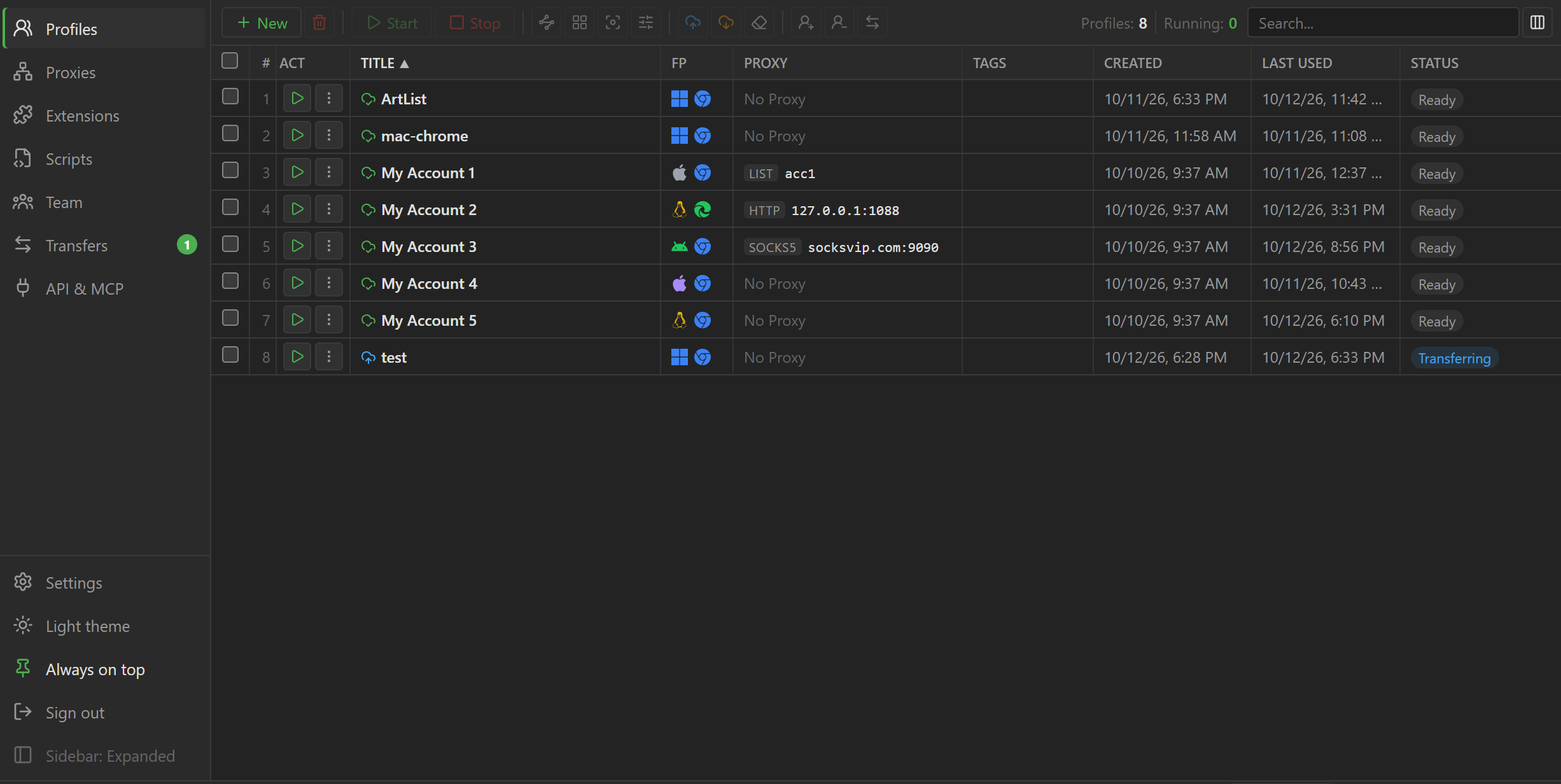
9Login ships in the 9Hits App bundle from version 6.0.1, alongside Viewer and Studio, so you do not need to install it separately. This page covers downloading and opening 9Login, signing in for the first time, and the app-wide settings.
System requirements#
- Windows 10 or later, 64-bit.
- 64-bit Linux with a desktop (GUI), on the same distributions that Viewer supports.
Download 9Login#
Sign in to the dashboard and open the Download 9Login page
(9Login menu, Downloads item). This page lists only the 9Hits App versions that include 9Login, that
is 6.0.1 and later. Older versions on the general 9Hits App Downloads page do not include 9Login.
Install and open 9Login#
- Extract the downloaded package into its own folder that you can write to, for example
D:\9Hits. Avoid extracting to the root of a drive or intoProgram Files. - Run
nhlogin.exein that folder. The same folder also holdsnhviewer.exe(Viewer) andnhstudio.exe(Studio).
- Install the browser libraries it needs, exactly as in step 1 of Viewer on desktop Linux.
- Extract the downloaded Linux package into its own folder that you can write to.
- Run
./nhloginin that folder.
Sign in#
The first time you open 9Login, it shows the sign-in screen. Pick the account type with the two buttons at the top:
My account: your 9Hits account. Enter yourUsername or emailand password, the same as when you sign in to the dashboard. If you do not have an account yet, sign up for free.Sub-user: a sub-user account that the account owner created for you (see Teamwork). Enter theUsernameand password the account owner gave you.
The Keep me signed in on this device box is checked by default, so next time you open 9Login you do
not need to enter your password again. Uncheck it on a shared computer.
To sign out, click Sign out at the bottom of the sidebar. All profiles running on the computer close
with it. If sign-in shows an error, see Can't sign in.
App settings#
Click Settings at the bottom of the sidebar. These settings apply only to the computer you are using.
Profile Data Folder: where the browser data of the profiles on this computer is stored (cookies, logins, cache...). Leave it empty and 9Login uses the default folder shown greyed out in the box, inside your home folder. The three-dot button (Choose a folder) picks a folder, and the X button (Back to the default folder) returns to the default. After you clickSave, you must restart 9Login for the new folder to take effect.Cloud Data: choose which parts of the browser data sync to the cloud, see Cookies and data.
Changing the folder does not move existing data
9Login does not copy existing data to the new folder. To keep cookies and logins in your profiles, close 9Login and copy the whole contents of the old folder to the new folder yourself before you open it again.